
Flutter uses Flutter Material Colors Class and Flutter Dart-UI Color Class to paint colors on your app screen.
- Flutter Material - Colors Class
- Flutter Dart-UI - Color Class
 |
|---|
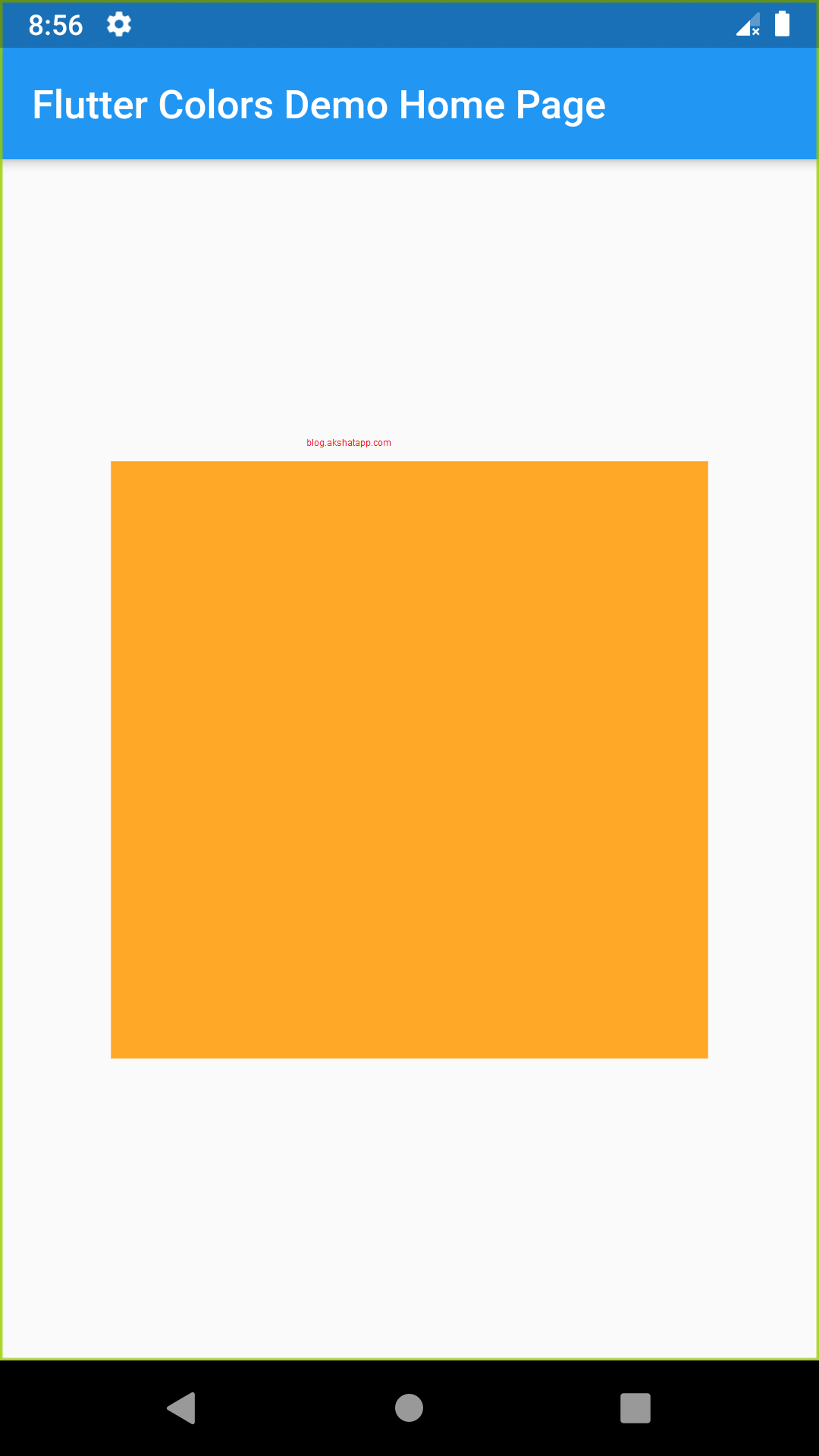
| Flutter Colors Demo |
How to apply colors to my flutter app ?
How to use Flutter Material Colors Class ?
Flutter Material Colors Class - Documentation
Also refer official class documentation with this guide to deeply understand the concept.
Let us start with the simplest way to apply colors to your flutter app widgets.
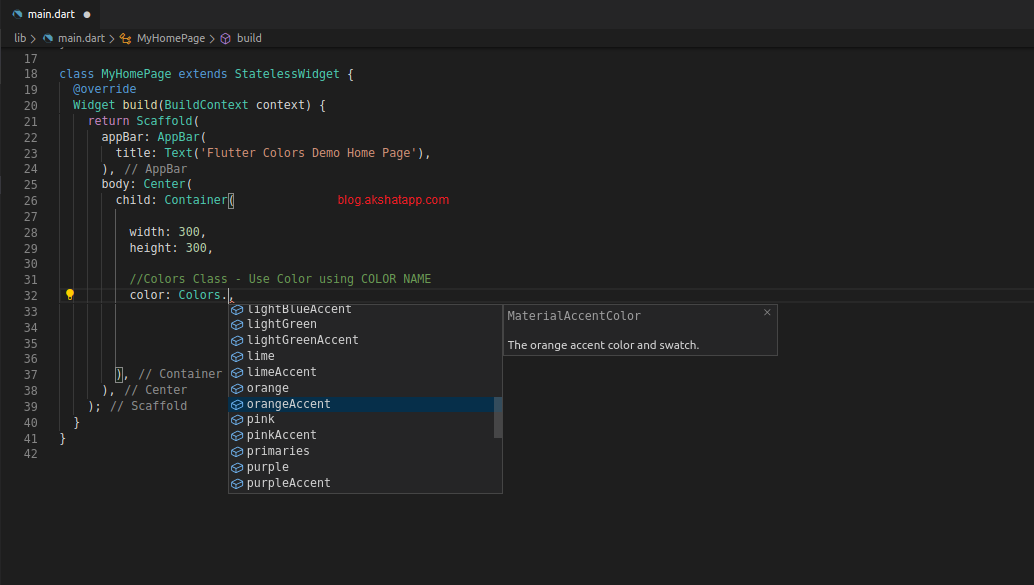
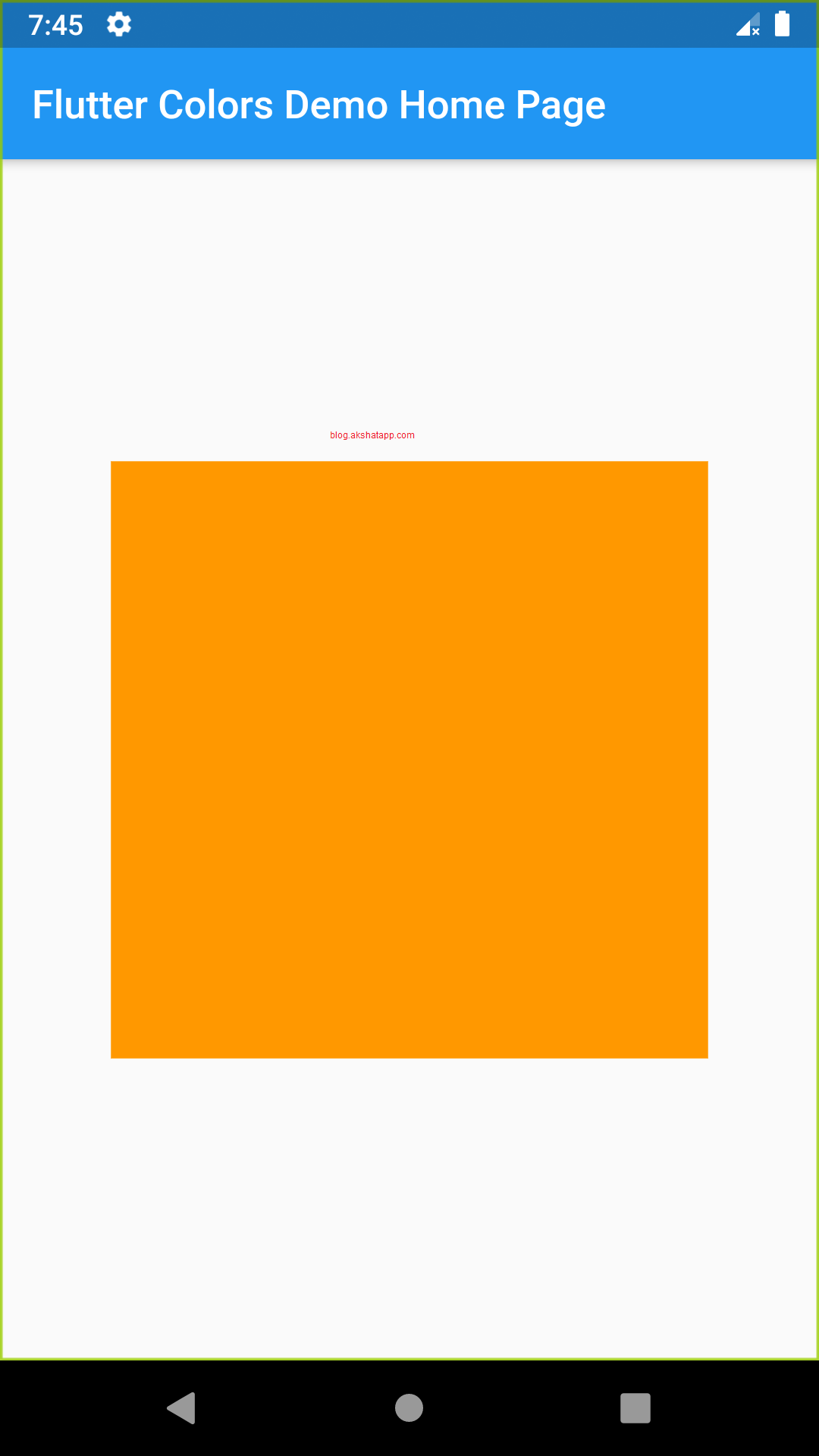
1. Colors class - Use Color using COLOR NAME (class constants)
color : Colors.orange
 |
|---|
| Colors Class Constants |
 |
|---|
| Orange Container Widget UI |
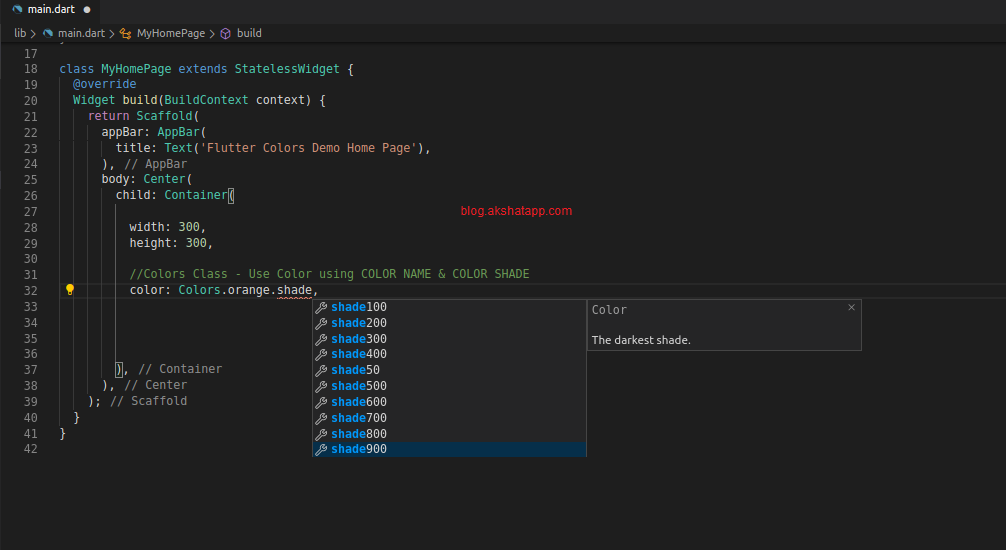
2.Colors class - Use Color using COLOR NAME & COLOR SHADE
- Color shade ranges from 100 to 900 in increment of one hundred
- Color with shade 50 is also added to above range in some colors
- Accent Colors have only shade values 100,200,400 and 700
- Lower Shade Value - Pale Color
- Higher Shade Value - Darker Color
![Darker Orange Shade - Colors.orange[900]](/assets/images/6/3.png "Darker Orange Shade - Colors.orange[900]") |
|---|
| Darker Orange Shade - Colors.orange[900] |
How to use color shade value ?
- Colors.orange[900]
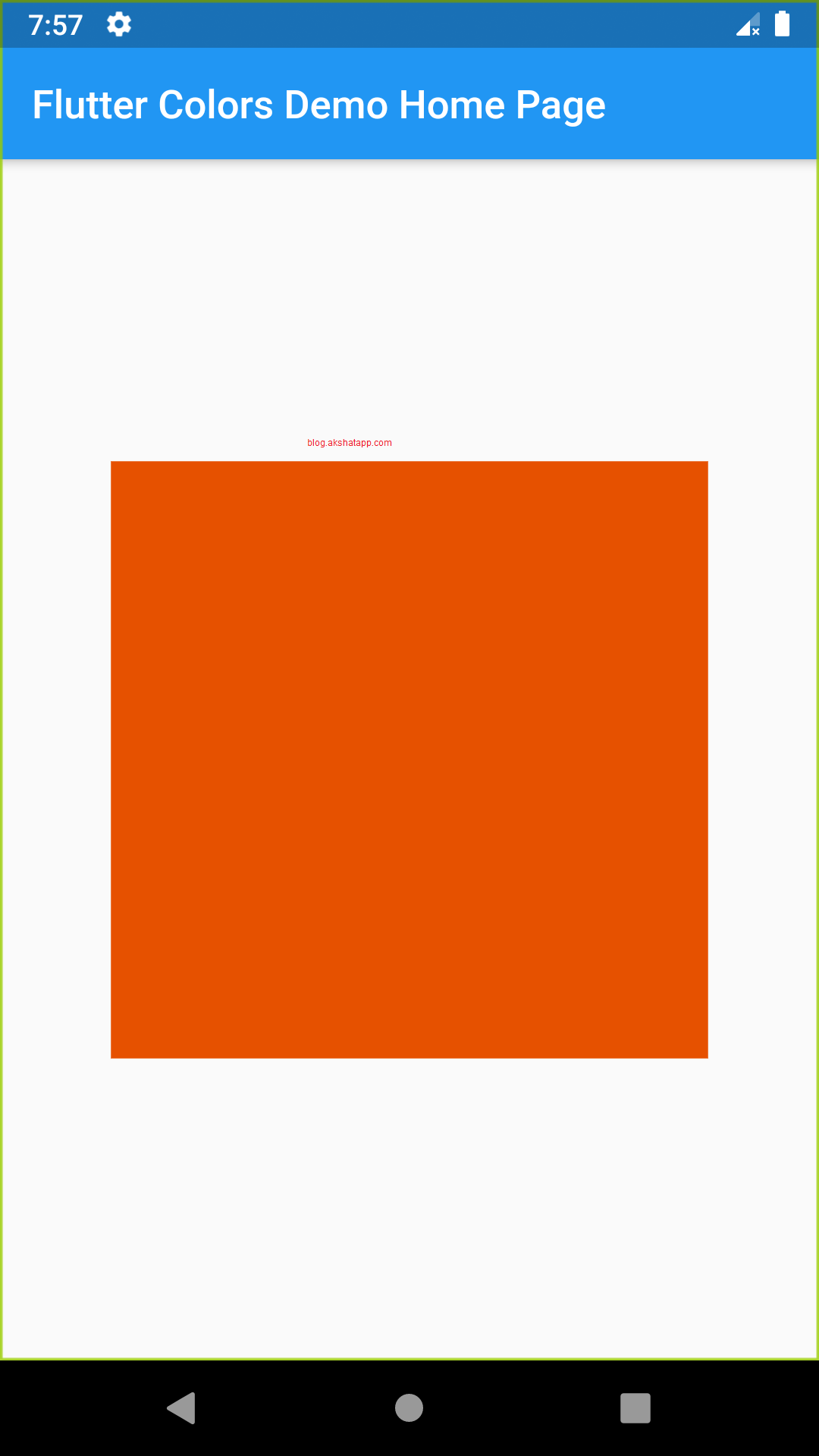
- Colors.orange.shade900
Both of the above methods have same output
![Colors.orange[900]](/assets/images/6/4.png "Colors.orange[900]") |
|---|
| Colors.orange[900] |
 |
|---|
| Colors.orange.shade900 |
Both the above methods have same output
 |
|---|
| Color Shade Orange 900 UI |
Note : Colors.orange is same as Colors.orange[500] or Colors.orange.shade500
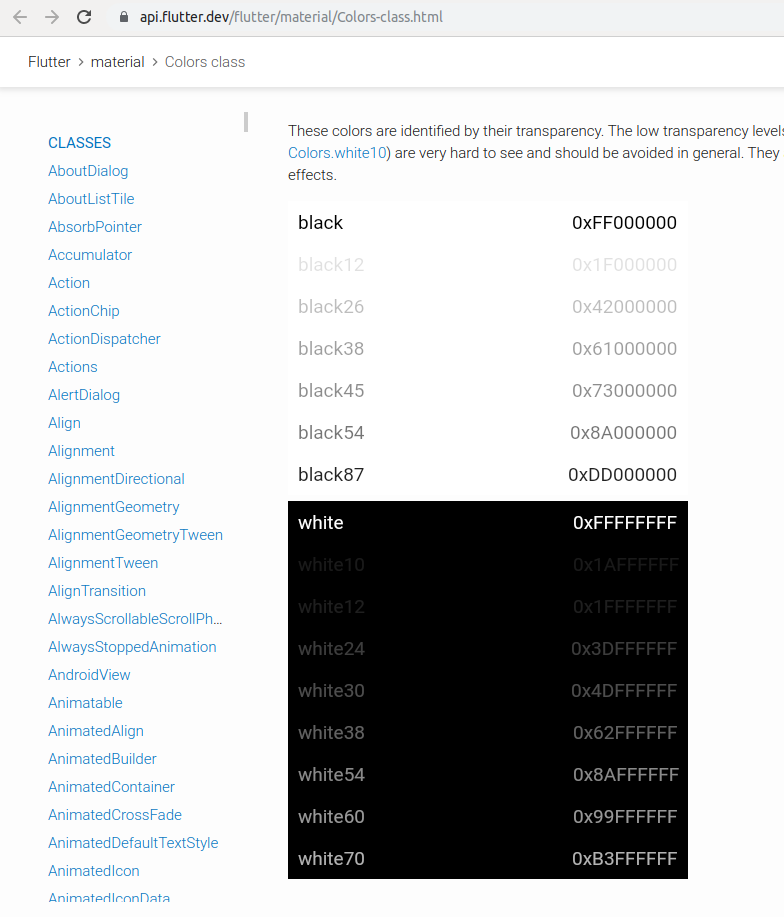
3. Colors class - Black and White Colors
- We have separate set of constants for color black and color white
- These colors are identified by their transparency and not shade values.
Example
- Colors.black54 - pure black with 54 % opacity
-
Colors.black12 - pure black with 12 % opacity
- Lower Number - Transparent Color
- Higher Number - Opaque Color
 |
|---|
| White & Black Colors |
Note : Transparent Color - Colors.transparent constant - entirely invisble
How to use Flutter Dart-UI Color Class ?
Flutter Dart-UI - Color Class - Documentation
Also refer official class documentation with this guide to deeply understand the concept.
Let us first understand the basics of colors.
Color channels
- Red Channel
- Green Channel
- Blue Channel
- Alpha Channel (Transparency)
Color Class Properties
-
Alpha Property - Docs
- Alpha Channel of this Color is in 8 bit value
- 8 bit value mean range 0 to 255 (2 raise to 8 = 256)
- 0 means this color is fully transparent
- 255 means this color is fully opaque
- return type int
Alpha Property Summary
8 bit value - 0 (transparent) to 255 (opaque)
-
Opacity Property - Docs
- Alpha channel of this color is in double value
- double value mean ranges from 0.0 to 1.0
- 0.0 means this color is fully transparent
- 1.0 means this color is fully opaque
- return type double
Opacity Property Summary
double value - 0.0 (transparent) to 1.0 (opaque)
- Value Property
Color represented as 32 bit value
Bits are assigned as follows :
- Bits 0 to 7 Blue value (Blue Channel)
- Bits 8 to 15 Green Value (Green Channel)
- Bits 16 to 23 Red Value (Red Channel)
- Bits 24 to 31 Alpha Value (Alpha Channel)
Difference between Alpha and Opacity
Alpha sets alpha channel value in 8 bit value and Opacity sets alpha channel value in double
Let us also understand what is 0xFFFFA726 ?
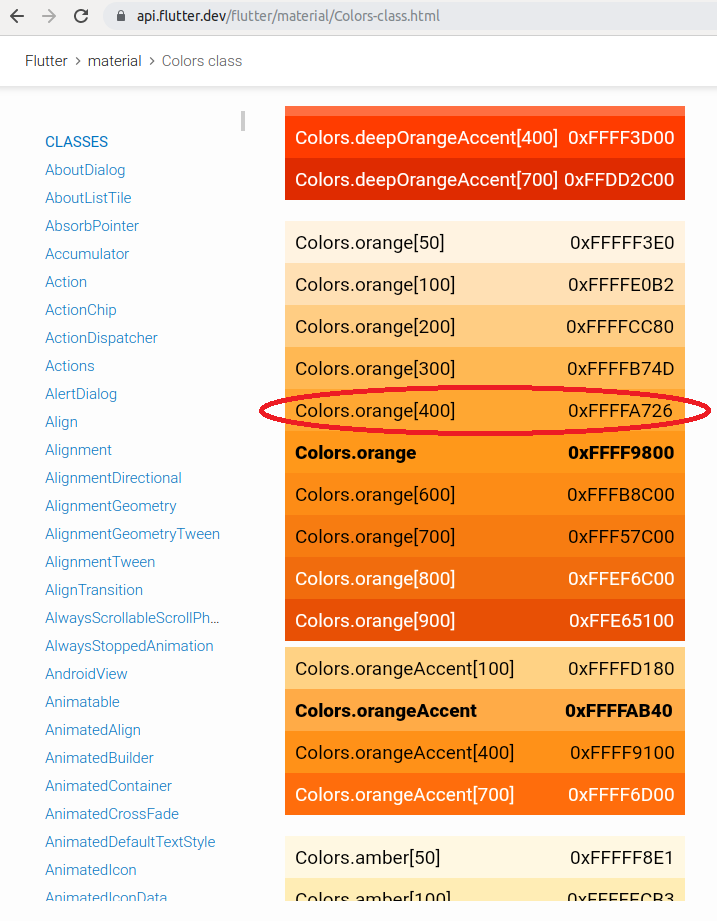 |
|---|
| Orange Int Value |
In the common “hash syntax” we represent color values as #FFA726 (Ignore 0xFF at the beginning).
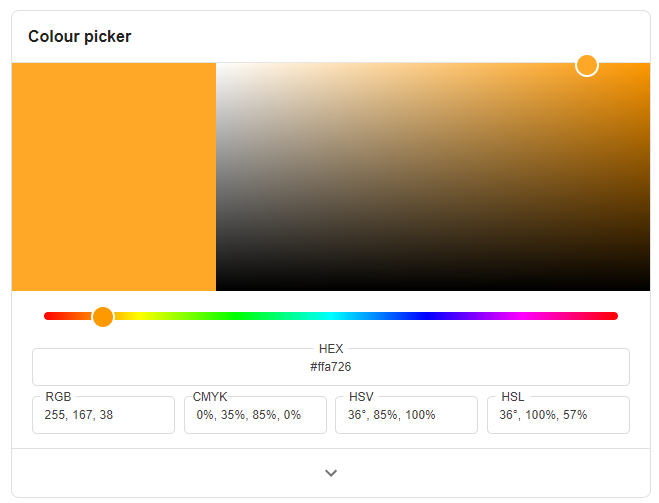 |
|---|
| color picker tool |
Using a color picker tool, we get the same color ie. Colors.orange[400] using “hash syntax” #FFA726
If we convert hex code to decimal code, we can get the RGB values.
- Red Channel FF (hex) equals 255 (decimal)
- Green Channel A7 (hex) equals 167(decimal)
- Blue Channel 26 (hex) equals 38(decimal)
Thus, 0xFFFFA726 is 0x FF(alpha) FF(red) A7(green) 26(blue)
Now, we have understood all the basics of color values and color channels we can now proceed with implementation code of the constructors of the Color class
Color Class Constructor
1. fromARGB Decimal (int) => Color.fromARGB(int a, int r, int g, int b)
color : Color.fromARGB (255,255,167,38) // fromARGB Decimal
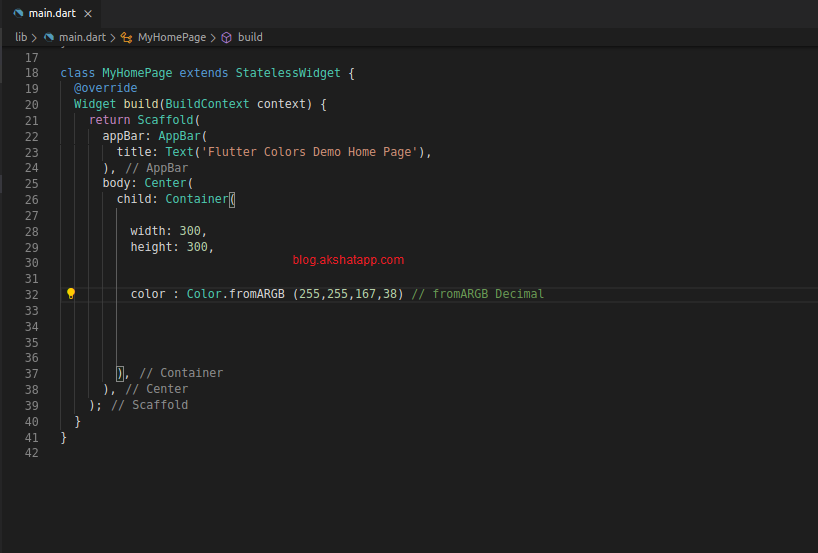 |
|---|
| ARGB int |
2. fromARGB Hex
Note : Add 0x to the value, for example, Green channel (hex) A7 will become 0xA7
color : Color.fromARGB (0xFF,0xFF,0xA7,0x26) // fromARGB Hex
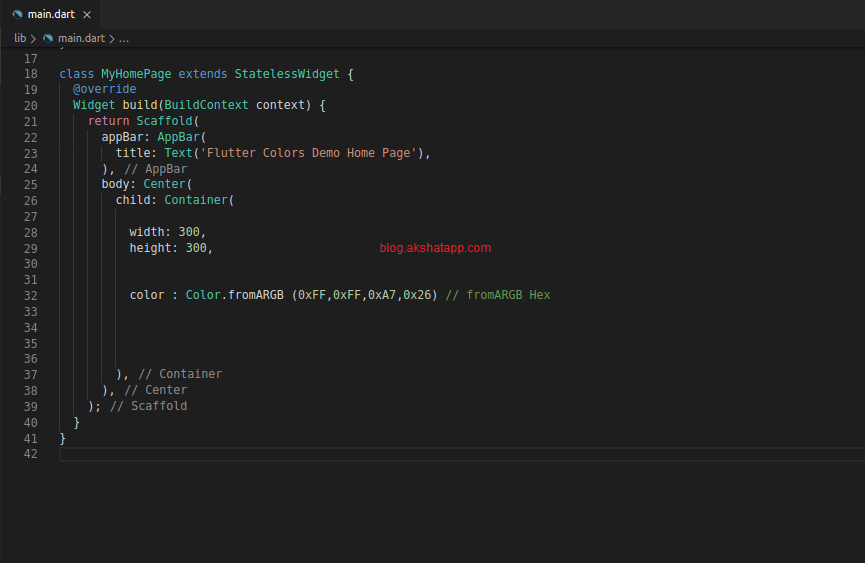 |
|---|
| ARGB Hex |
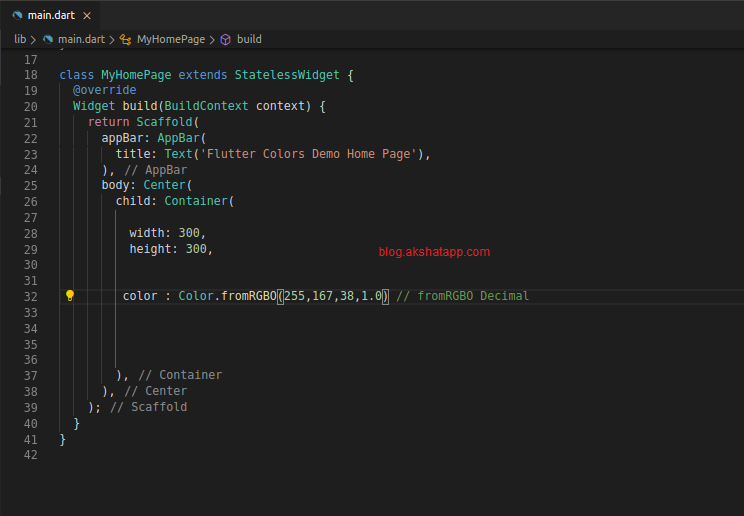
3. fromRGBO Decimal (int) => Color.fromRGBO(int r, int g, int b, double opacity)
color : Color.fromRGBO(255,167,38,1.0) // fromRGBO Decimal
- O stands for opacity - refer above explained opacity property summary
- double value - 0.0 (transparent) to 1.0 (opaque)
 |
|---|
| RGBO |
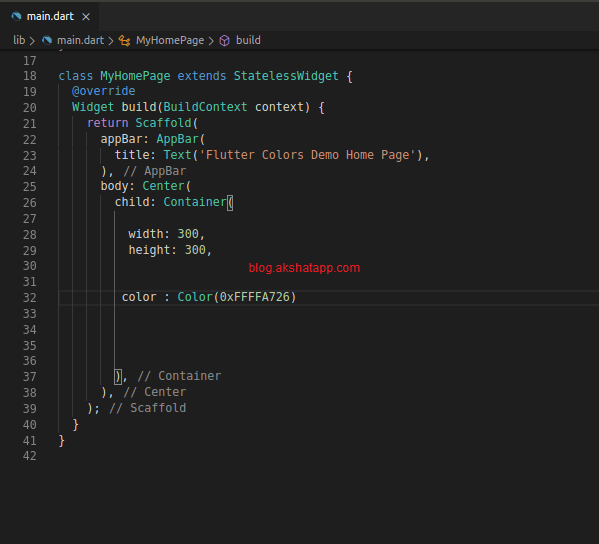
4. Color - Color(int value) - 0xAARRGGBB
- Get any color int value for example #FFA726
- Add 0xFF to “hash syntax” FFA726 => 0xFFFFA726
- 0xFF added to hash syntax is the alpha channel FF(hex) => 255 (decimal) opaque color
color : Color(0xFFFFA726) // int value
 |
|---|
| Color Int Value |
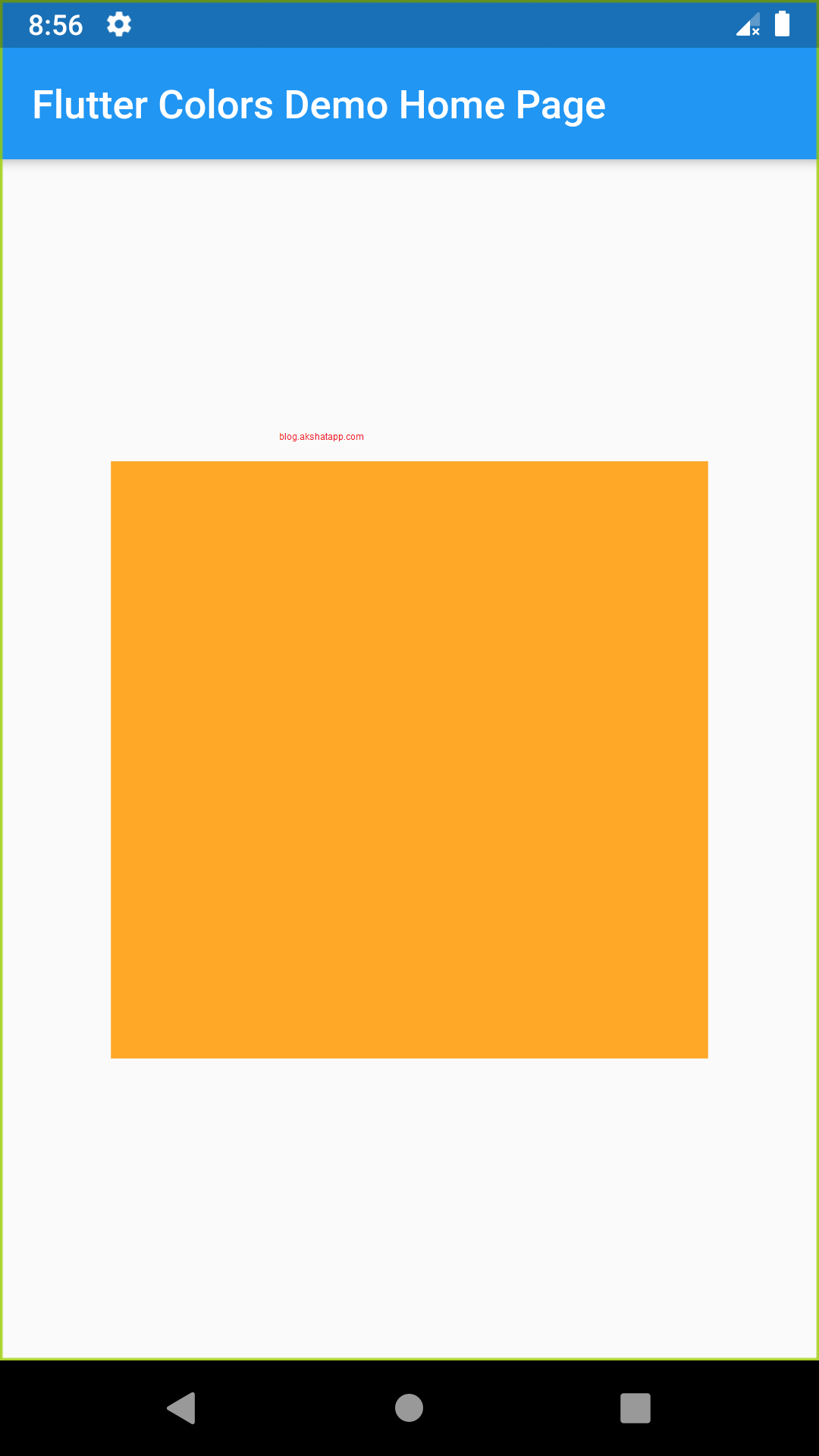
Output UI Color for all above 4 constructor is same
 |
|---|
| Color Constructor Output |
Coding - Sample Flutter App Code
import 'package:flutter/material.dart';

void main() => runApp(MyApp());

class MyApp extends StatelessWidget {
  @override
  Widget build(BuildContext context) {
    return MaterialApp(
      debugShowCheckedModeBanner: false,
      title: 'Flutter Colors Demo',
      theme: ThemeData(
        primarySwatch: Colors.blue,
      ),
      home: MyHomePage(),
    );
  }
}

class MyHomePage extends StatelessWidget {
  @override
  Widget build(BuildContext context) {
    return Scaffold(
      appBar: AppBar(
        title: Text('Flutter Colors Demo Home Page'),
      ),
      body: Center(
        child: Container(
          width: 300.0,
          height: 300.0,

          // To color your Container Widget - Choose any one method

          //Method 1 : Colors Class - using color by COLOR NAME
          color: Colors.orange,

          //Method 2 : Colors Class - using color by COLOR NAME & COLOR SHADE
          //color: Colors.orange[900],

          //Method 3 : Colors Class - using color by COLOR NAME & COLOR SHADE
          //color: Colors.orange.shade900

          //Method 4 : fromARGB Decimal
          //color: Color.fromARGB(255, 255, 167, 38),

          //Method 5 : fromARGB Hex
          //color: Color.fromARGB(0xFF, 0xFF, 0xA7, 0x26),

          //Method 6 : fromRGBO
          //color: Color.fromRGBO(255, 167, 38, 1.0),

          //Method 7 : Color Class
          //color: Color(0xFFFFA726),
        ),
      ),
    );
  }
}
Frequently Asked Questions
Share This Post

Join our newsletter!
Get the latest developer guides, tutorials, and tips delivered straight to your inbox.