
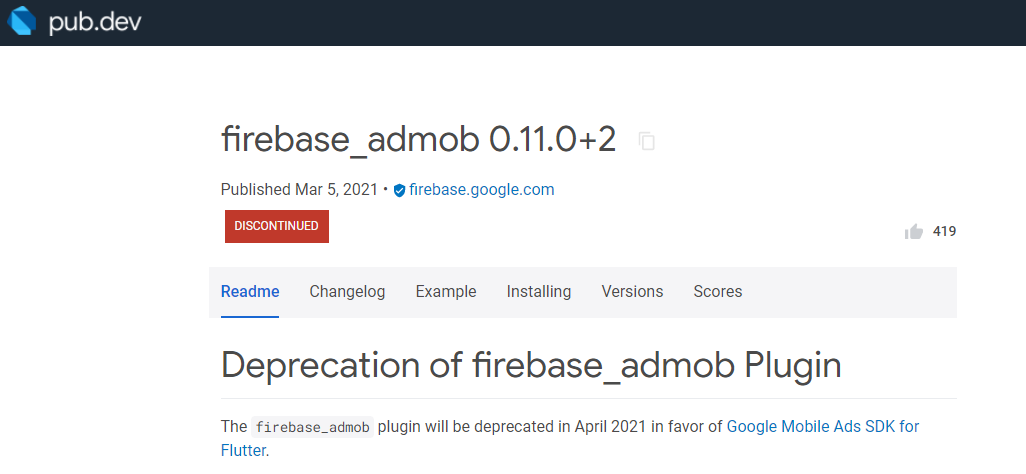
📢 This package has been discontinued in April 2021 in favor of Google Mobile Ads SDK for Flutter. Please refer our new guide for Google Mobile Ads SDK for Flutter
Our New Guide : Monetizing Flutter Apps 💡
Flutter Package : Google Mobile Ads SDK for Flutter ✅
❌Flutter Package : firebase_admob
It is a plugin for flutter that supports loading and displaying banner, interstitial(full-screen), and rewarded video ads using Firebase AdMob API.❌
Learn More : firebase_admob
 |
|---|
| Firebase AdMob Package |
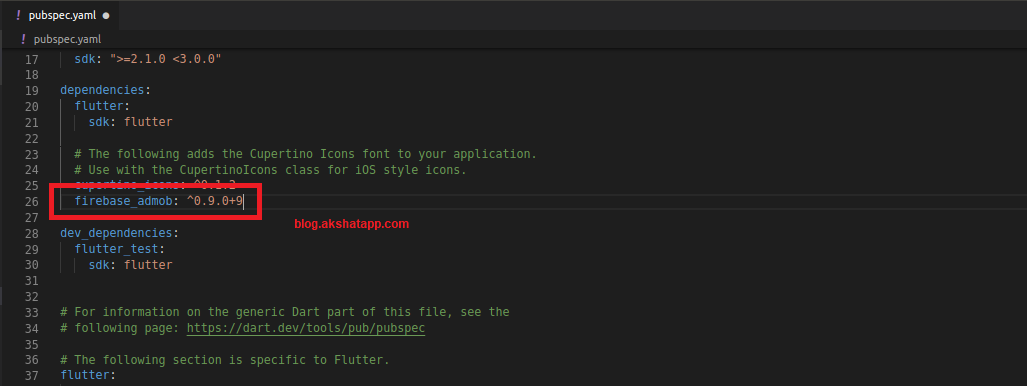
step 1 : Add package name - firebase_admob in pubspec.yaml
firebase_admob: ^0.9.0+9
To learn how to use packages in flutter refer our Using Flutter Packages Guide
 |
|---|
| Adding Flutter Package |
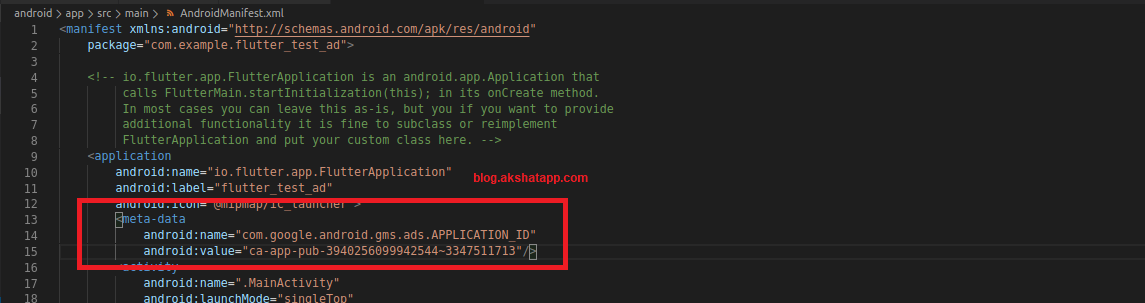
step 2 : Add meta data to Android-Manifest.xml
<manifest>
    <application>
        <!-- TODO: Replace with your real AdMob app ID -->
        <meta-data
            android:name="com.google.android.gms.ads.APPLICATION_ID"
            android:value="ca-app-pub-################~##########"/>
    </application>
</manifest>
 |
|---|
| Adding meta-data to AndroidManifest.xml |
step 3 : Coding - Sample Flutter App Code
Note : Use Stateful Widgets
This is a simple app demo to learn how to integrate admob ads in your flutter app.
import 'dart:math';
import 'package:flutter/material.dart';
import 'package:firebase_admob/firebase_admob.dart';

void main() => runApp(MyApp());

class MyApp extends StatelessWidget {
  @override
  Widget build(BuildContext context) {
    return MaterialApp(
      debugShowCheckedModeBanner: false,
      title: 'Flutter Firebase AdMob Test Ads Demo App',
      theme: ThemeData(
        primarySwatch: Colors.blue,
      ),
      home: MyHomePage(),
    );
  }
}

class MyHomePage extends StatefulWidget {
  @override
  _MyHomePageState createState() => _MyHomePageState();
}

class _MyHomePageState extends State<MyHomePage> {
  InterstitialAd myInterstitial;

  InterstitialAd buildInterstitialAd() {
    return InterstitialAd(
      adUnitId: InterstitialAd.testAdUnitId,
      listener: (MobileAdEvent event) {
        if (event == MobileAdEvent.failedToLoad) {
          myInterstitial..load();
        } else if (event == MobileAdEvent.closed) {
          myInterstitial = buildInterstitialAd()..load();
        }
        print(event);
      },
    );
  }

  void showInterstitialAd() {
    myInterstitial..show();
  }

  void showRandomInterstitialAd() {
    Random r = new Random();
    bool value = r.nextBool();

    if (value == true) {
      myInterstitial..show();
    }
  }

  @override
  void initState() {
    super.initState();

    myInterstitial = buildInterstitialAd()..load();
  }

  @override
  void dispose() {
    myInterstitial.dispose();

    super.dispose();
  }

  @override
  Widget build(BuildContext context) {
    return Scaffold(
      appBar: AppBar(
        title: Text('Flutter Test Ad App'),
      ),
      body: Center(
        child: ButtonBar(
          alignment: MainAxisAlignment.center,
          children: <Widget>[
            RaisedButton(
              child: Text('BannerAd'),
              onPressed: () {
                Navigator.push(context,
                    MaterialPageRoute(builder: (context) => BannerAdPage()));
              },
            ),
            RaisedButton(
              child: Text('InterstitialAd'),
              onPressed: () {
                showInterstitialAd();
                //showRandomInterstitialAd();
                Navigator.push(
                  context,
                  MaterialPageRoute(builder: (context) => InterstitialAdPage()),
                );
              },
            )
          ],
        ),
      ),
    );
  }
}

class InterstitialAdPage extends StatelessWidget {
  @override
  Widget build(BuildContext context) {
    return Scaffold(
      appBar: AppBar(),
      body: Center(
        child: Text('InterstitialAd Page'),
      ),
    );
  }
}

class BannerAdPage extends StatefulWidget {
  @override
  _BannerAdPageState createState() => _BannerAdPageState();
}

class _BannerAdPageState extends State<BannerAdPage> {

  BannerAd myBanner;

  BannerAd buildBannerAd() {
    return BannerAd(
        adUnitId: BannerAd.testAdUnitId,
        size: AdSize.banner,
        listener: (MobileAdEvent event) {
          if (event == MobileAdEvent.loaded) {
            myBanner..show();
          }
        });
  }

  BannerAd buildLargeBannerAd() {
    return BannerAd(
        adUnitId: BannerAd.testAdUnitId,
        size: AdSize.largeBanner,
        listener: (MobileAdEvent event) {
          if (event == MobileAdEvent.loaded) {
            myBanner
              ..show(
                  anchorType: AnchorType.top,
                  anchorOffset: MediaQuery.of(context).size.height * 0.15);
          }
        });
  }

  @override
  void initState() {
    super.initState();

    FirebaseAdMob.instance.initialize(appId: FirebaseAdMob.testAppId);
    myBanner = buildBannerAd()..load();
    //myBanner = buildLargeBannerAd()..load();
  }

  @override
  void dispose() {
    myBanner.dispose();
    super.dispose();
  }

  @override
  Widget build(BuildContext context) {
    return Scaffold(
      appBar: AppBar(),
      body: Center(
        child: Text('BannerAd Page'),
      ),
    );
  }
}
How to Implement Banner Ads ?
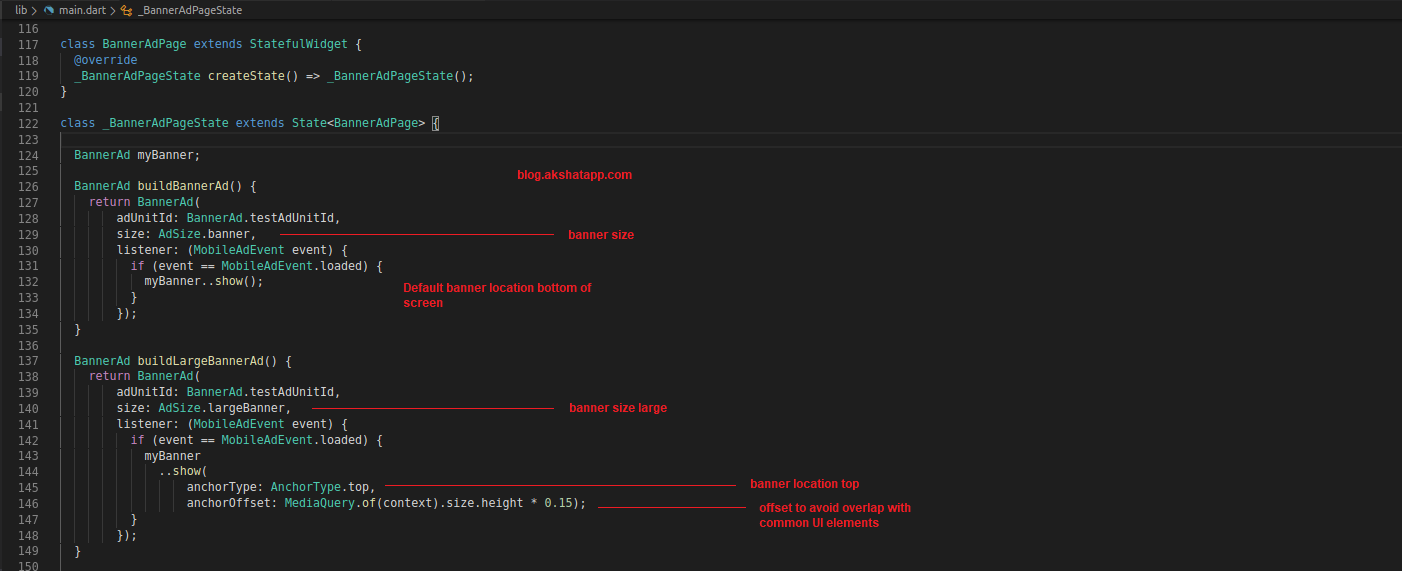
- Define Banner Ad Property
- Set size (Banner Size) - largeBanner, banner etc
- Set adUnitId (here we are using TestAdUnitId)
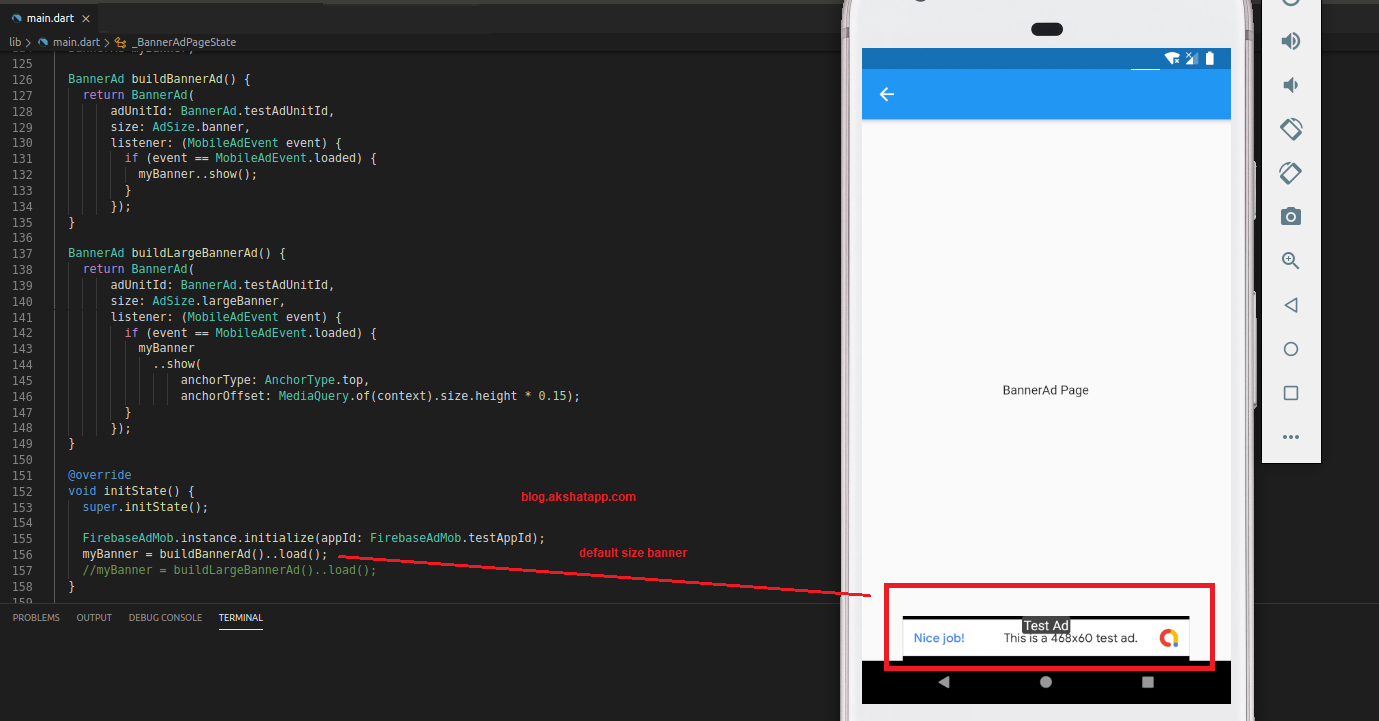
- Default Banner location - bottom of the screen
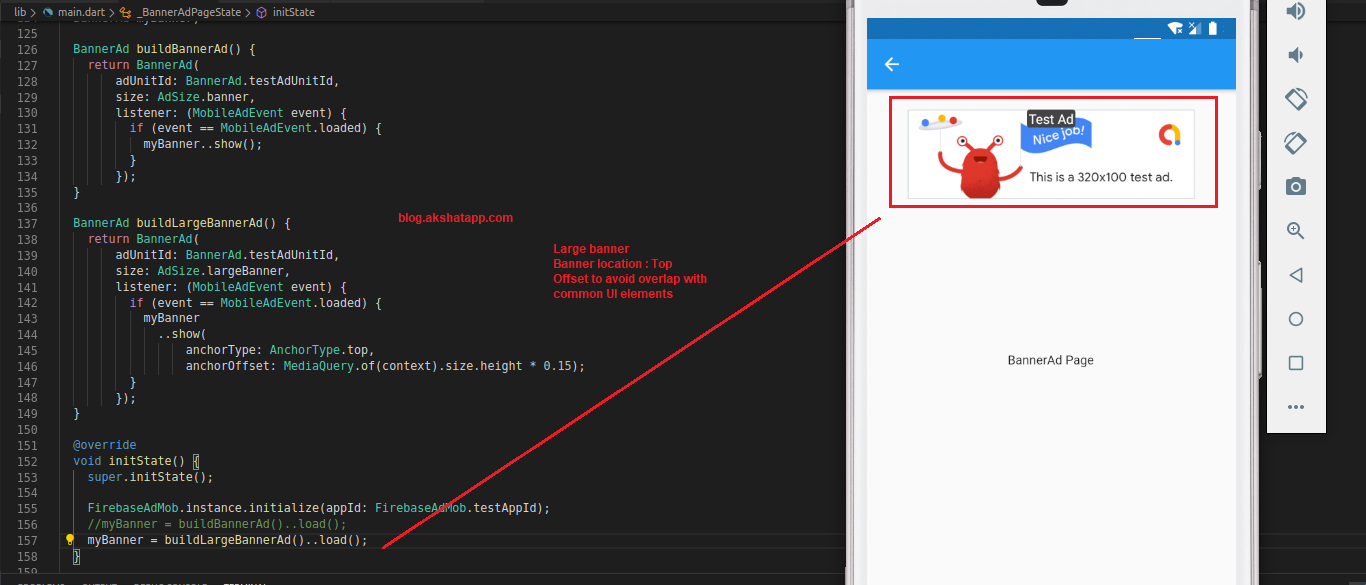
- You can even set banner location to top using anchorType property as shown below
- Provide anchorOffset value to avoid overlap with common UI elements on the screen.
- Using listener, once the ad is loaded , show your banner ad using ..show() method
 |
|---|
| Define Banner Ad Property |
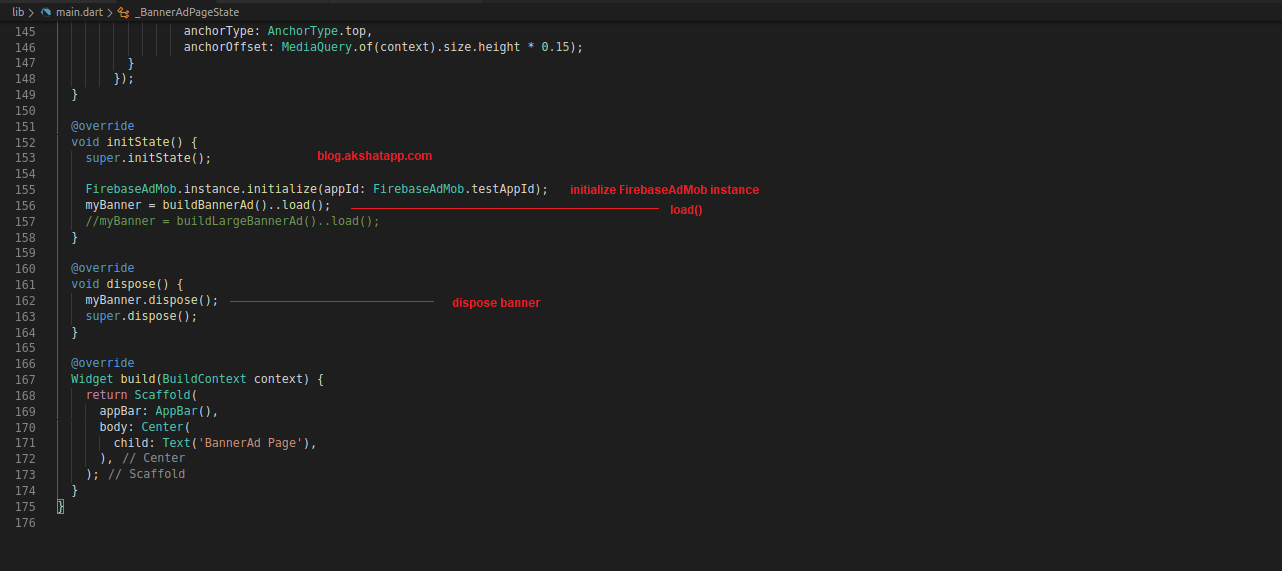
- Ads must be loaded before they are shown. Load your ads in initState Method
- Also, intialize FirebaseAdMob instance - appId. Here we are using testAppId
 |
|---|
| load banner ad |
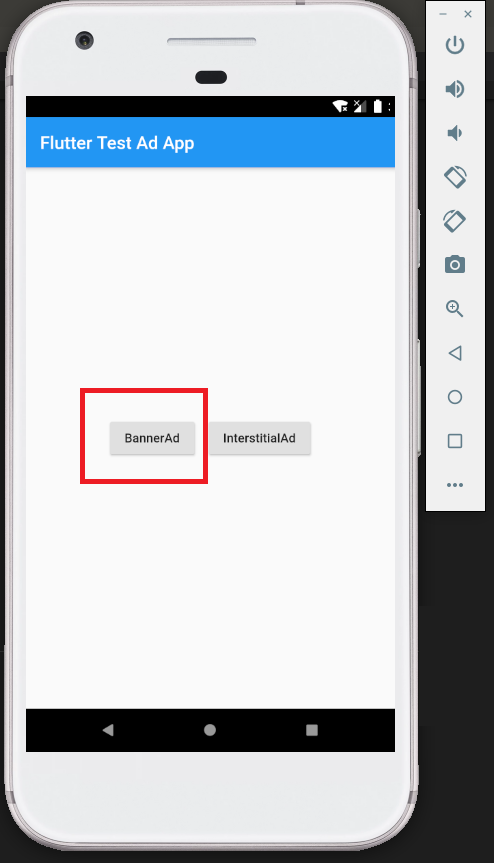
Banner Ad Demo App User Interface
Select BannerAd button to open a BannerAd Page
 |
|---|
| Demo App HomeScreen - BannerAd |
Banner Ad Demo Ad 1 - buildBannerAd()
- Default size Banner Test Ad displayed at the bottom of the screen
 |
|---|
| Banner Ad Demo 1 |
Banner Ad Demo Ad 2 - buildLargeBannerAd()
- Large Banner Ad at the top of the screen
- Offset allows us to place ad below the AppBar so that it does not overlap with other UI elements on the screen.
 |
|---|
| Banner Ad Demo 2 |
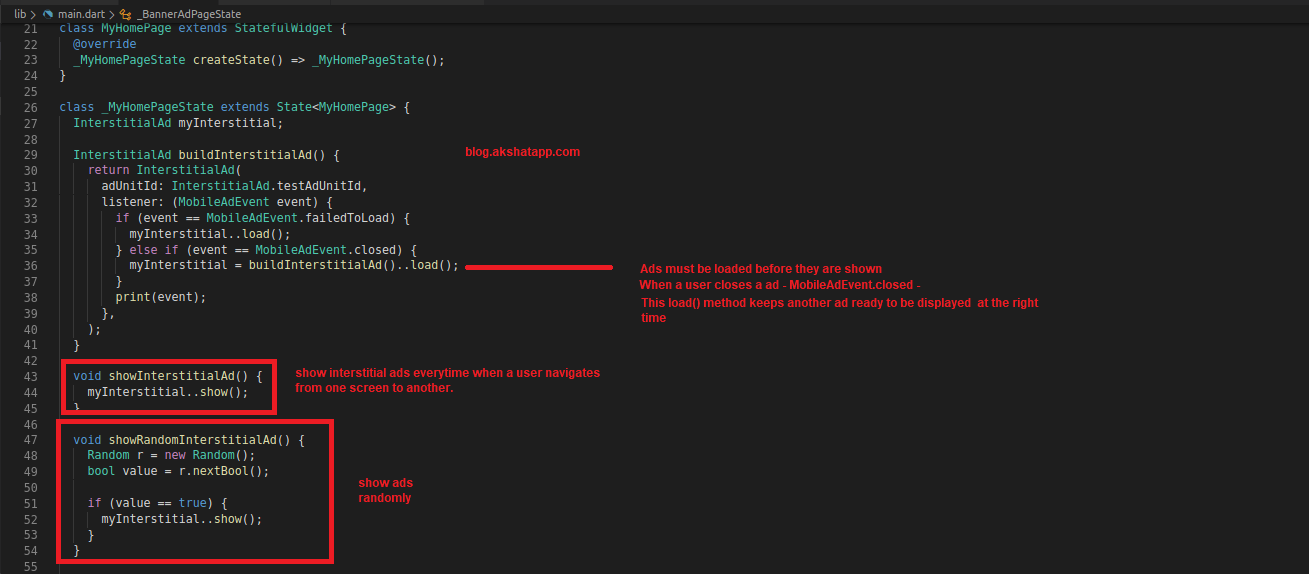
How to Implement Interstitial Ads ?
- Define Interstitial Ad Property
- Set adUnitId (here we are using testAdUnitId)
-
MobileAdEvent.closed - user closes a ad
-
this load() method keeps another ad ready to be displayed when the right time comes ie. show() method is invoked
- showInterstitialAd() - shows interstitial ads every time when a user navigates from one screen to another.
- showRandomInterstitialAd() - showing ads every time can be annoying to users, so we can use this method to show ads randomly.
 |
|---|
| Define Interstitial Ad Property |
- Ads must be loaded before they are shown. Load your ads in initState Method
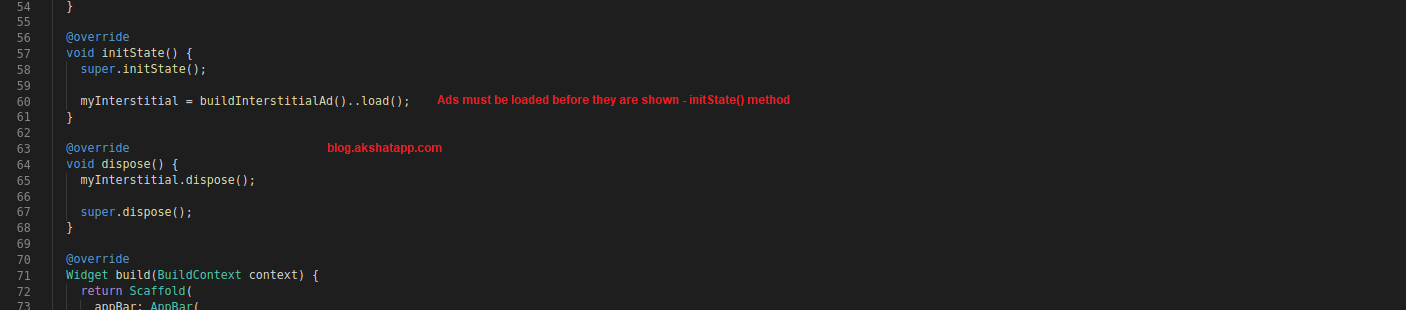 |
|---|
| load interstitial ad |
- Display your ad - call showInterstitialAd() on button press
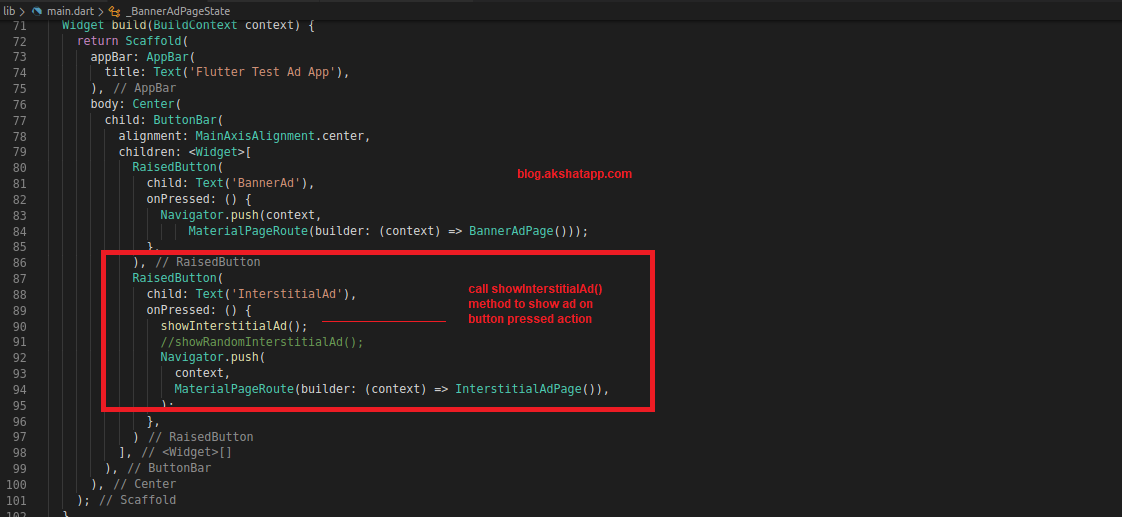 |
|---|
| show interstitial ad |
Note: Enable WiFi or mobile network on your test device or emulator to see test ads.
Interstitial Ad Demo App User Interface
Select InterstitialAd button to open Interstitial Ad Page
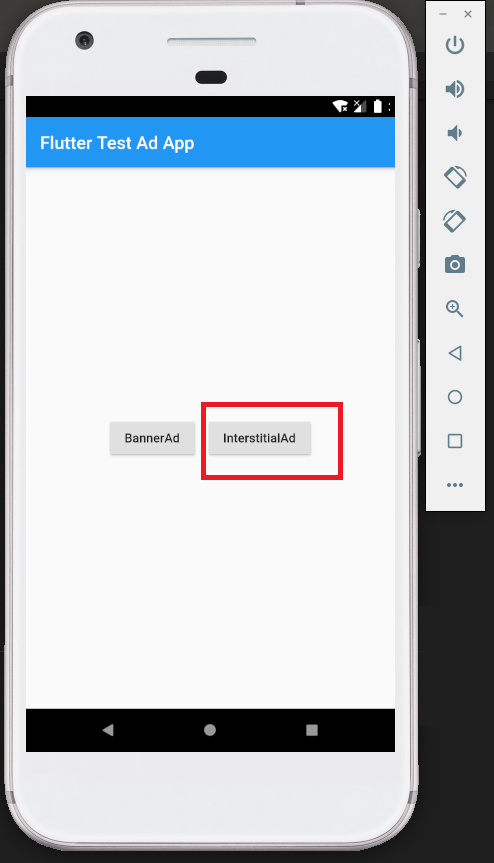 |
|---|
| Demo App HomeScreen - Interstitial Ad |
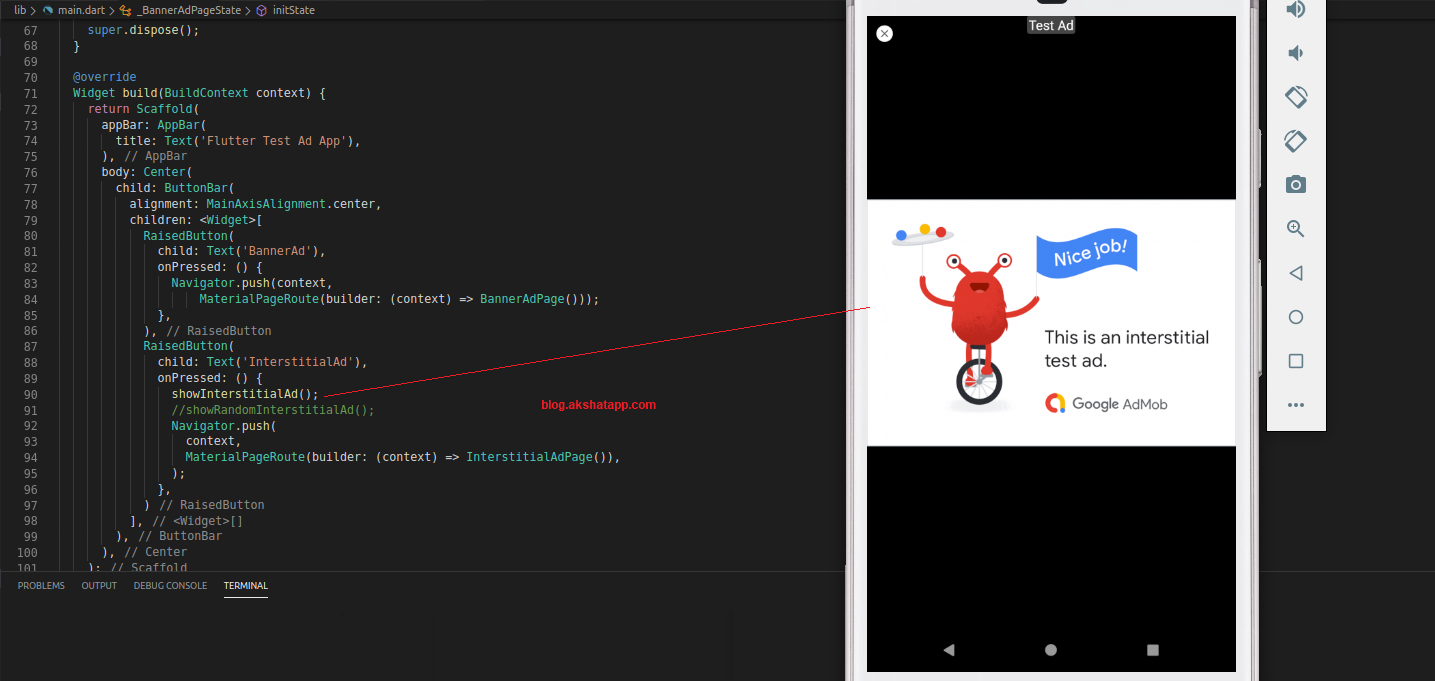 |
|---|
| Flutter Interstitial Ad Demo |
How can I apply this guide to my real Android App ?
This guide explains how to enable test ads in your app. These ad units are not associated with your AdMob account and are sample ad units that are used for building and testing your apps.
Note : If you want to publish your app to Play Store or App Store then you will have to add your AdMob app ID in your AndroidManifest.xml file. Once you find your AdMob app ID in the AdMob UI add it to your AndroidManifest.xml file as explained in step 2.
<manifest>
    <application>
        <!-- TODO: Replace with your real AdMob app ID -->
        <meta-data
            android:name="com.google.android.gms.ads.APPLICATION_ID"
            android:value="ca-app-pub-################~##########"/>
    </application>
</manifest>
Also replace testAdUnitId with an ad unit ids from AdMob to display real ads to your app users.
BannerAd buildBannerAd() {
    return BannerAd(
 // Replace the testAdUnitId with an ad unit id from the AdMob dash.
        adUnitId: BannerAd.testAdUnitId,
        size: AdSize.banner,
 ...
  }
Useful Resources
Frequently Asked Questions
Share This Post

Join our newsletter!
Get the latest developer guides, tutorials, and tips delivered straight to your inbox.