
 |
|---|
| flutter release apk |
How to sign the apk or app bundle created using flutter ?
To publish your app on Play Store, you need to give your app a digital signature.
step 1 : Create a new keystore file ; if you have an existing keystore , skip this step
- Run command in your terminal for linux/mac
keytool -genkey -v -keystore ~/key.jks -keyalg RSA -keysize 2048 -validity 10000 -alias key - On Windows, use the following command:
keytool -genkey -v -keystore c:/Users/USER\_NAME/key.jks -storetype JKS -keyalg RSA -keysize 2048 -validity 10000 -alias key - Fill in the required info inside the terminal
Enter keystore password: test@12345
        Re-enter new password: test@12345

        What is your first and last name?
        [test]:  test
        What is the name of your organizational unit?
        [test]:  test
        What is the name of your organization?
        [test]:  test
        What is the name of your City or Locality?
        [test]:  test
        What is the name of your State or Province?
        [test]:  test
        What is the two-letter country code for this unit?
        [tt]:  tt
        Is CN=test, OU=test, O=test, L=test, ST=test, C=tt correct?
        [no]:  yes

//OUTPUT
 Generating 2,048 bit RSA key pair and self-signed certificate (SHA256withRSA) with a validity of 10,000 days
                for: CN=test, OU=test, O=test, L=test, ST=test, C=tt
        [Storing /home/<user name>/key.jks]
- Keep the keystore file private; do not check it into public source control.
- Always keep a backup of the keystore file.
Common errors while signing the app
Command 'keytool' not found
run command :
sudo apt install openjdk-11-jre-headless
or
sudo apt install openjdk-8-jre-headless
step 2 : Reference the keystore from the app
- Create a file name key.properties in your android folder
Write the following lines inside the newly created file
storePassword=<password from previous step>
keyPassword=<password from previous step>
keyAlias=key
storeFile=<location of the key store file, such as /Users/<user name>/key.jks>
- Keep the key.properties file private; do not check it into public source control.
- Always keep a backup of the key.properties file.
step 3 : Configure signing in gradle
Navigate to /android/app/build.gradle file.
1. Replace the following
android {
with
   def keystoreProperties = new Properties()
   def keystorePropertiesFile = rootProject.file('key.properties')
   if (keystorePropertiesFile.exists()) {
       keystoreProperties.load(new FileInputStream(keystorePropertiesFile))
   }

   android {
2. Replace the following
buildTypes {
            release {
                // TODO: Add your own signing config for the release build.
                // Signing with the debug keys for now,
                // so \`flutter run --release\` works.
                signingConfig signingConfigs.debug
            }
        }
with the signing config info
signingConfigs {
       release {
           keyAlias keystoreProperties['keyAlias']
           keyPassword keystoreProperties['keyPassword']
           storeFile file(keystoreProperties['storeFile'])
           storePassword keystoreProperties['storePassword']
       }
   }
   buildTypes {
       release {
           signingConfig signingConfigs.release
       }
   }
Now, every release build of your app will be signed automatically
step 4 : how to create APK file or Android App Bundle using flutter ?
- How to build an android app bundle (aab) using flutter ?
Running flutter build defaults to a release build
flutter build appbundle
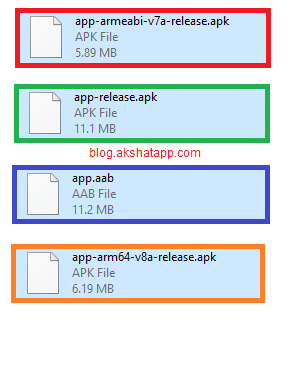
Note : release bundle for your app is created at /build/app/outputs/bundle/release/app.aab
- How to build apk file using flutter ?
flutter build apk
Note : the above command “flutter build apk” builds a fat apk
OR
flutter build apk --split-per-abi
Note : the above command generated two apk files
- armeabi-v7a (32-bit) apk
- arm64-v8a (64-bit) apk
Bonus Tip : Do not forget to :
- Add a launcher icon to you app - refer our icon guide - android app icon
-
Review App Manifest File, AndroidManifest.xml, located in <app dir>/android/app/src/main
- Application Name [android : label in
tag] - uses-permission [Permission requested by your app]
- Application Name [android : label in
-
Review the build configuration, Gradle build file, build.gradle, located in <app dir>/android/app
-
Navigate to defaultConfig code block and verify
- applicationId - unique app id
- versionCode & versionName - Setting the version property in pubspec.yaml
- minSdkVersion & targetSdkVersion - API level on which your app is designed to run
-
Useful Resources
Frequently Asked Questions
Share This Post

Join our newsletter!
Get the latest developer guides, tutorials, and tips delivered straight to your inbox.