- Validate your flutter setup using “flutter doctor command”.
Once flutter sdk and your terminal is up and running, To Create a new flutter project from the flutter starter app template follow the below steps
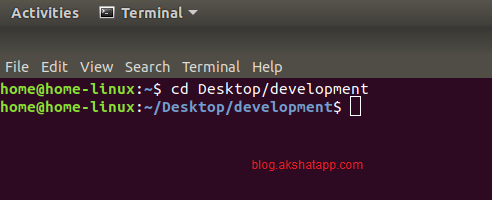
step 1 : Navigate to your project location using “cd” command in your terminal window
 |
|---|
| CD Project Folder |
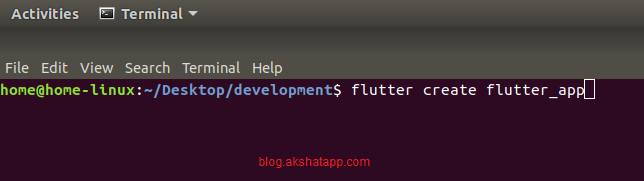
step 2 : To create a new flutter project in your project location, use “flutter create” command
Syntax : flutter create <app name>
 |
|---|
| flutter create command |
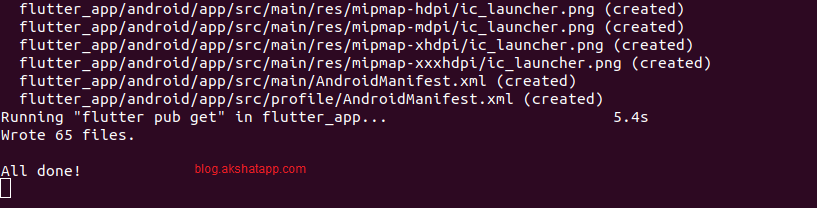
Wait for a couple of seconds and let flutter create the required files and folders in your project location.
 |
|---|
| Flutter App Created |
Your flutter project is ready ! Edit your flutter code using your favorite code editor.
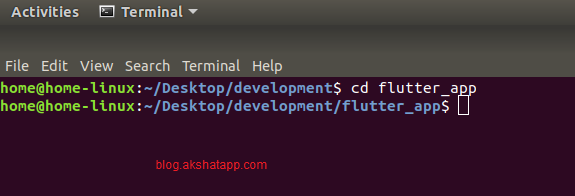
- To run your flutter app - navigate to your project directory using “cd” command
 |
|---|
| CD Flutter App Directory |
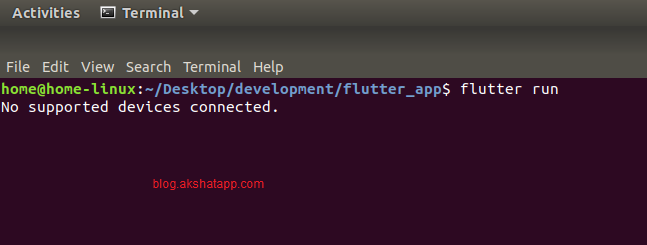
- Use command “flutter run” to run your app.
 |
|---|
| flutter run command - no device |
If you get an output : No supported devices connected.
- To check the list of connected devices run command : flutter devices
 |
|---|
| flutter devices command - no device |
Note:
To run the flutter app or project you must have either a physical device or emulator connected.
Now, let us understand how to run the emulator device using terminal.
step 3 : Run Android Emulator using Terminal Command
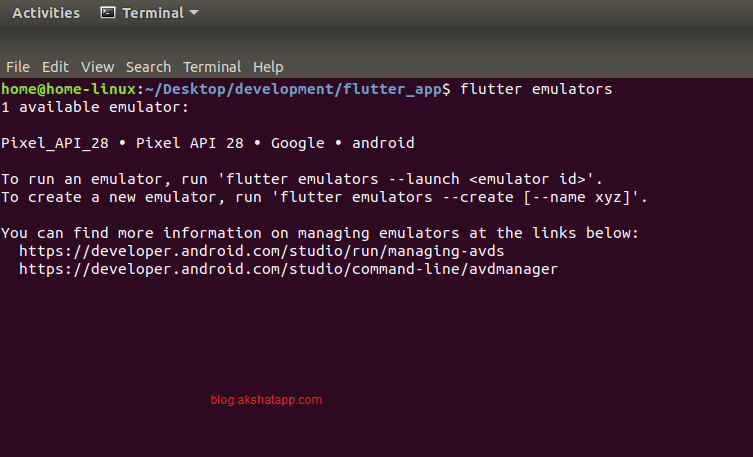
Run command : flutter emulators - to get the list of emulators
 |
|---|
| flutter emulators command |
Note your emulator id - In this demo, our emulator id is “Pixel API 28 “
step 4 : Launch your emulator using Terminal Command
Run command : flutter emulators –launch <emulator id>
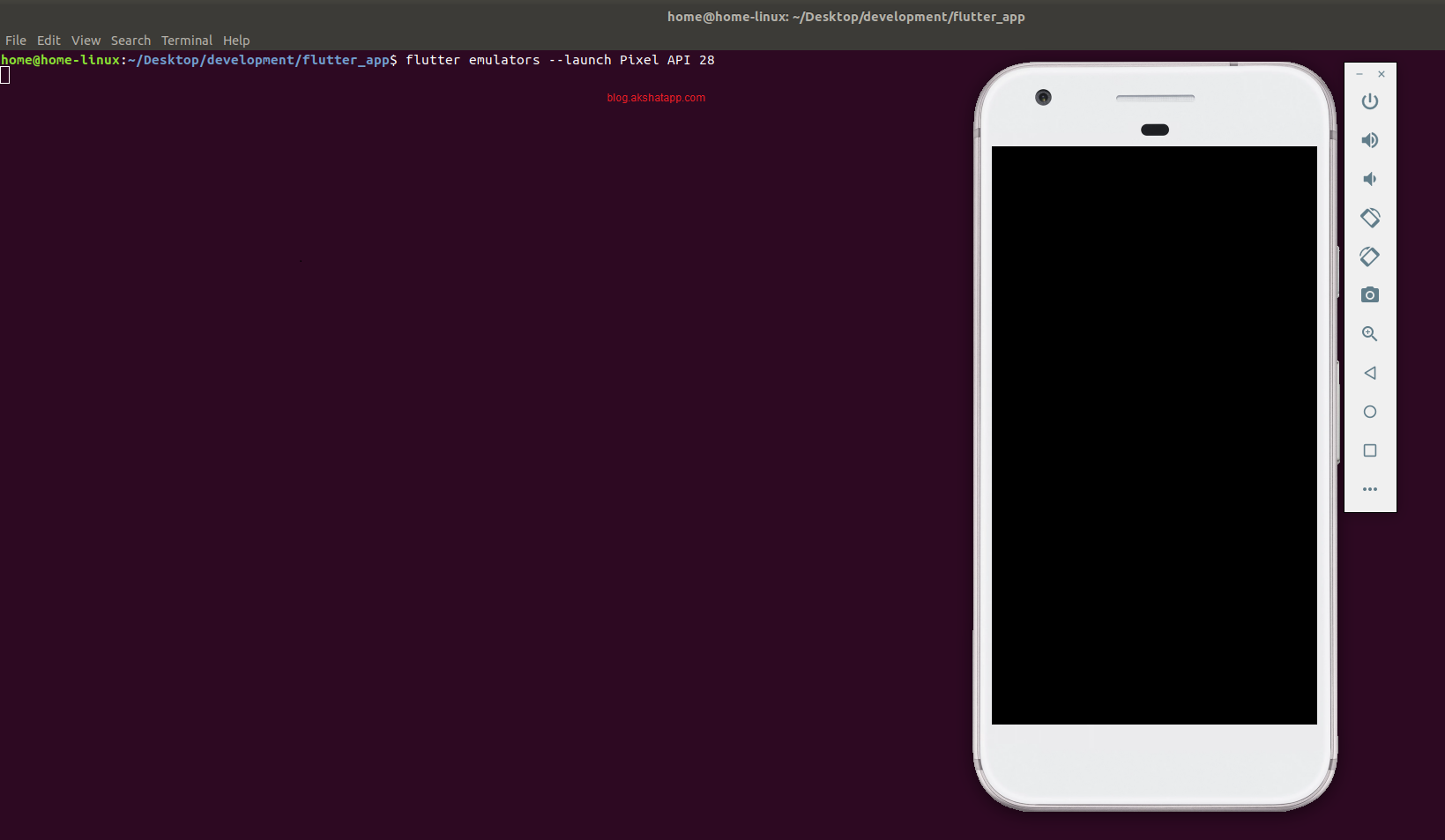 |
|---|
| flutter emulator launch command |
Once the Emulator device is up and running,
Once again, Run command : flutter devices
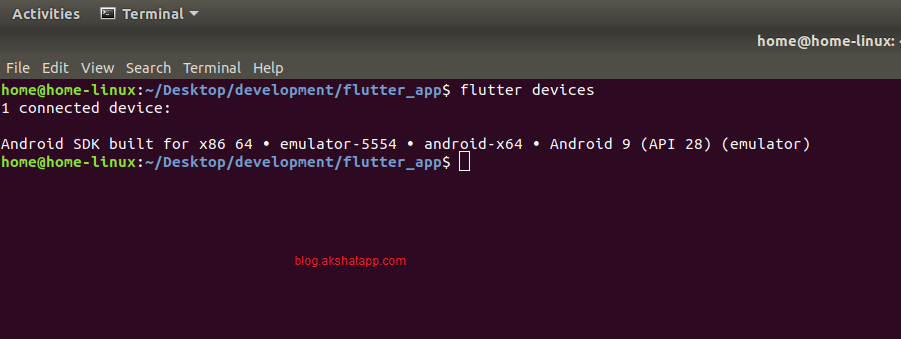 |
|---|
| flutter devices command |
It should show you number of connected devices
step 5 : Run Flutter Project using Terminal Command
Once you have one or more connected devices, we can now run the flutter app or project on the connected devices.
Run command : flutter run - to run your project
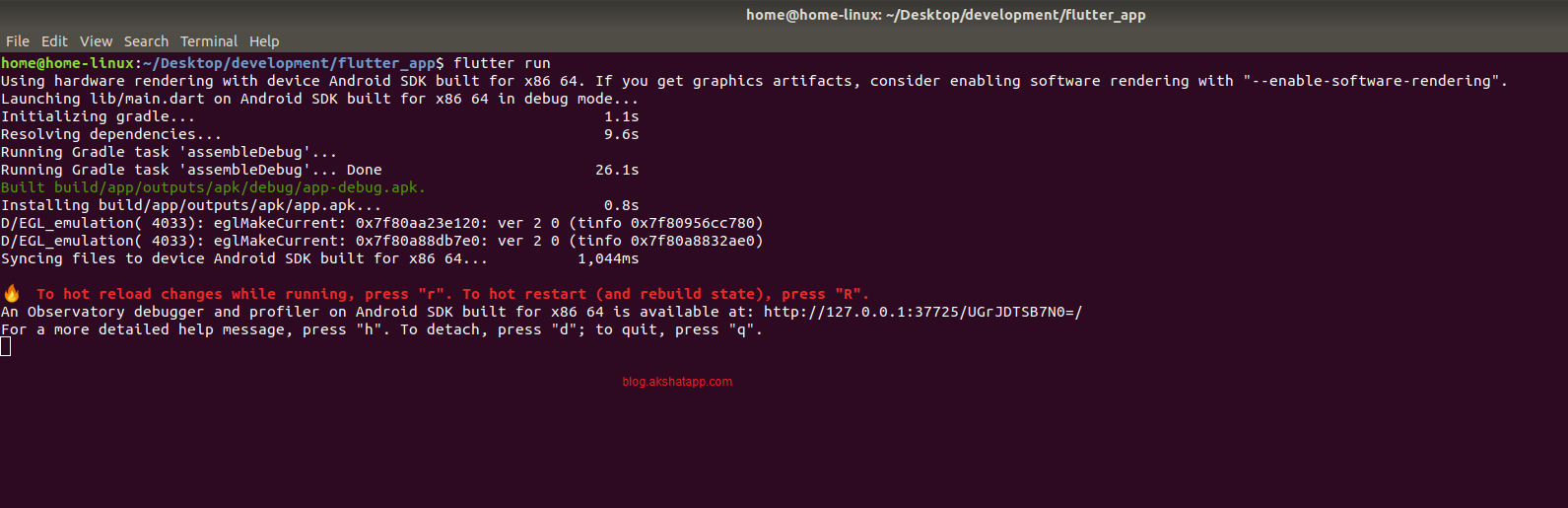 |
|---|
| flutter run command |
Note : if you have more than one device use command - flutter run -d <device id>
Your flutter app is now running successfully on your connected devices.
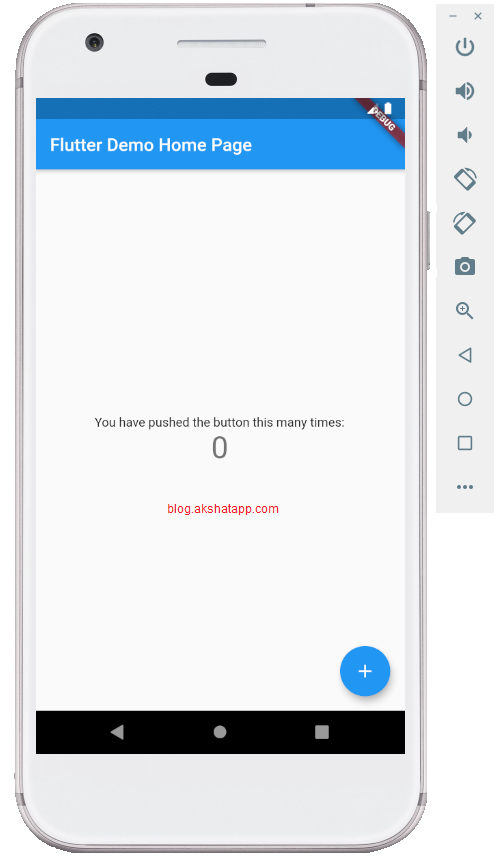 |
|---|
| Flutter Demo App |
Bonus Tip : Hot Reload and Hot Restart
Flutter Hot Reload : Type r in the terminal windows once you have edited your code to update your app UI instantly.
 |
|---|
| Flutter Hot Reload |
Flutter Hot Restart : Type R (shift + r) in the terminal window to restart your app.
 |
|---|
| Flutter Hot Restart |
Frequently Asked Questions
Share This Post

Join our newsletter!
Get the latest developer guides, tutorials, and tips delivered straight to your inbox.