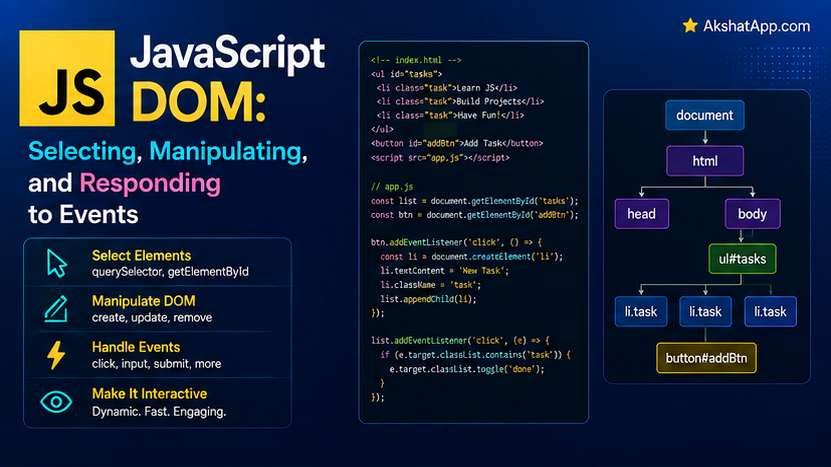
Every post in this series so far has run in Node.js — the terminal, console.log, no visible interface at all. This post is where JavaScript returns to the context it was actually created for in 1995: making a web page interactive. The task tracker becomes a real, clickable, browser-rendered application for the first time.
This post covers the DOM (Document Object Model) — the browser’s live, JavaScript-accessible representation of the HTML page — selecting elements, reading and safely modifying their content, creating and removing elements dynamically, and handling real user events including a pattern (event delegation) that solves a genuine, common problem with dynamically-added content. It also covers a security vulnerability, innerHTML misuse, that is worth understanding precisely regardless of your specific role, since it remains one of the most common real-world web vulnerabilities.
The Mental Model: The DOM Is a Live Tree, Not Just HTML Text
When a browser loads an HTML page, it parses that HTML into the DOM — a tree of JavaScript objects representing every element, attribute, and piece of text on the page. This is not a static snapshot of the original HTML source; it is a live, in-memory structure that JavaScript can read and modify directly, with the browser automatically re-rendering the visible page the instant the DOM changes. Every technique in this post is really one of two things: reading from this tree, or modifying it — with the browser handling the “make it appear on screen” part automatically, every time.
Basic HTML Setup
<!DOCTYPE html>
<html lang="en">
<head>
    <meta charset="UTF-8" />
    <title>Task Tracker</title>
</head>
<body>
    <h1>Task Tracker</h1>
    <form id="task-form">
        <input type="text" id="task-input" placeholder="New task..." required />
        <button type="submit">Add Task</button>
    </form>
    <ul id="task-list"></ul>

    <script src="taskTracker.js"></script>
</body>
</html>
The <script> tag at the very end of <body> (rather than in <head>) ensures the DOM elements above it already exist by the time the script runs — a standard, simple convention avoiding the “script tries to select an element that doesn’t exist yet” problem entirely.
Selecting Elements
// The modern, preferred method — accepts any valid CSS selector
const taskList = document.querySelector("#task-list");
const allButtons = document.querySelectorAll("button"); // returns a NodeList of ALL matches

// Older, still extremely common, slightly faster for this specific case
const taskListOld = document.getElementById("task-list");
querySelector returns the first matching element (or null if nothing matches — always worth checking, covered in this post’s mistakes section). querySelectorAll returns every matching element as a NodeList — iterable with forEach, exactly like an array, though it is worth knowing it is not technically a genuine array (most array methods from Post #4 work on it directly, but not every one).
Reading and Modifying Content
const heading = document.querySelector("h1");

console.log(heading.textContent); // "Task Tracker" — reads the current text

heading.textContent = "My Tasks"; // safely sets plain text — always the safe default
⚠️ innerHTML and the XSS Vulnerability
heading.innerHTML = "<em>My Tasks</em>"; // interprets the string AS HTML — fine for trusted, hardcoded contentinnerHTML parses whatever string you assign to it as actual HTML — which is exactly what makes it dangerous with untrusted input. This is a real, extremely common web vulnerability called Cross-Site Scripting (XSS), and understanding why it happens is standard, essential web development knowledge:
// If this string came from user input (a comment, a task description, anything not hardcoded by you)...
const userProvidedText = '<img src=x onerror="alert(document.cookie)">';

element.innerHTML = userProvidedText; // DANGEROUS — the browser actually executes the injected script!
element.textContent = userProvidedText; // SAFE — displays the literal text, completely harmless
textContent never interprets its input as HTML — it is always treated as plain, literal text, regardless of what it contains. The rule this series follows without exception: use textContent for any content that came from user input, an API response, or anywhere else outside your own hardcoded source — reserve innerHTML specifically for content you wrote yourself and fully control, never for displaying data whose origin you do not trust completely.
Modifying Attributes and Classes
const button = document.querySelector("button");

button.setAttribute("disabled", "true");
button.removeAttribute("disabled");

// classList — the standard, modern way to manage CSS classes
const taskItem = document.querySelector(".task-item");
taskItem.classList.add("completed");
taskItem.classList.remove("completed");
taskItem.classList.toggle("completed"); // adds if absent, removes if present — one call, either direction
taskItem.classList.contains("completed"); // true or false
classList.toggle() is genuinely useful for exactly the “flip a state” pattern the task tracker needs — marking a task complete or incomplete with a single call, without first checking which state it is currently in.
Creating and Inserting Elements
const li = document.createElement("li");
li.textContent = "Learn the DOM";
li.classList.add("task-item");

document.querySelector("#task-list").append(li); // modern method — adds as the last child
// appendChild(li) is the older equivalent, still extremely common in existing code
createElement builds a new element entirely in memory — it does not appear on the page at all until explicitly inserted somewhere in the DOM tree, via append (modern) or appendChild (older, functionally similar for this basic case).
Removing Elements
const taskToRemove = document.querySelector(".task-item");
taskToRemove.remove(); // modern, direct — removes the element from the DOM entirely
Events: Responding to User Interaction
const button = document.querySelector("#add-button");

button.addEventListener("click", () => {
    console.log("Button clicked!");
});
addEventListener(eventType, callback) registers a function to run whenever the specified event occurs on that element — "click", "submit", "input", "keydown", and many others.
The Event Object
button.addEventListener("click", (event) => {
    console.log(event.target); // the actual DOM element that triggered the event
    console.log(event.type);    // "click"
});
The callback automatically receives an event object carrying details about what happened — event.target (which specific element triggered it) is used constantly, especially in the event delegation pattern covered next.
Event Delegation: Handling Dynamically Added Elements Correctly
// Naive approach — attaching a listener to every existing task item individually
document.querySelectorAll(".task-item").forEach((item) => {
    item.addEventListener("click", handleTaskClick);
});
// PROBLEM: any task item added LATER (after this code runs) has no listener attached at all!
Attaching listeners individually breaks the moment new elements are added dynamically after the initial setup — exactly what happens every time a task is added to the task tracker. Event delegation solves this by attaching one listener to a stable parent element instead, and using event.target to determine which specific child was actually interacted with:
document.querySelector("#task-list").addEventListener("click", (event) => {
    const taskItem = event.target.closest(".task-item");
    if (taskItem) {
        const index = Number(taskItem.dataset.index);
        toggleTask(index);
    }
});
This single listener, attached once to #task-list (which always exists), correctly handles clicks on any task item — including ones added long after this listener was first set up — because the listener lives on the parent, and every click bubbles up to it regardless of which specific child element was actually clicked. event.target.closest(".task-item") finds the nearest ancestor (or the element itself) matching that selector, correctly handling the case where the user clicks on something nested inside a task item rather than the task item element directly.
dataset: Reading Custom Data Attributes
li.dataset.index = index; // sets a data-index="0" attribute directly on the element

// Later, reading it back:
const index = Number(taskItem.dataset.index); // dataset values are always strings — convert explicitly!
dataset provides direct access to any data-* HTML attribute — the standard way to attach small pieces of custom data directly to DOM elements, exactly as used here to track which task each list item corresponds to.
Forms: preventDefault and Reading Values
document.querySelector("#task-form").addEventListener("submit", (event) => {
    event.preventDefault(); // CRITICAL — without this, the browser reloads the page entirely!

    const input = document.querySelector("#task-input");
    const description = input.value.trim();

    if (description) {
        addTask(description);
        input.value = ""; // clear the input for the next entry
    }
});
event.preventDefault() is not optional — a form’s default browser behavior on submit is a full page navigation (reloading, or navigating to whatever URL the form’s action points to), which would completely discard every bit of JavaScript state your page has built up. Forgetting this single call is one of the most common early mistakes when building anything form-based.
The Complete Browser-Based Task Tracker
// taskTracker.js
const tasks = [];

function renderTasks() {
    const list = document.querySelector("#task-list");
    list.textContent = ""; // clear existing content before re-rendering from scratch

    tasks.forEach((task, index) => {
        const li = document.createElement("li");
        li.classList.add("task-item");
        li.dataset.index = index;

        if (task.completed) {
            li.classList.add("completed");
        }

        li.textContent = task.description; // textContent — safe, even for user-entered task names
        list.append(li);
    });
}

function addTask(description) {
    tasks.push({ description, completed: false });
    renderTasks();
}

function toggleTask(index) {
    tasks[index].completed = !tasks[index].completed;
    renderTasks();
}

document.querySelector("#task-form").addEventListener("submit", (event) => {
    event.preventDefault();
    const input = document.querySelector("#task-input");
    const description = input.value.trim();
    if (description) {
        addTask(description);
        input.value = "";
    }
});

document.querySelector("#task-list").addEventListener("click", (event) => {
    const taskItem = event.target.closest(".task-item");
    if (taskItem) {
        const index = Number(taskItem.dataset.index);
        toggleTask(index);
    }
});
Open the HTML file above with this script linked, in any browser, and it works — type a task, submit, click it to toggle completion, add more tasks, all rendering and responding live. The renderTasks “clear and rebuild the whole list from the array” approach used here (rather than manually adding or removing individual DOM elements to match each change) is a simple, genuinely common pattern for small applications — Post #17’s performance coverage in this series addresses exactly when this “full re-render” approach stops scaling well and more targeted DOM updates become worth the added complexity.
Real-World Use Cases
Any interactive web page or application: Forms, buttons, dynamic lists, modals, and every other interactive UI element ultimately rely on the DOM selection, modification, and event-handling techniques covered in this post — this is the foundational layer every JavaScript UI framework (covered conceptually in this series’ later posts) is itself built on top of.
Preventing XSS in any application accepting user input: Comments, usernames, search queries, task descriptions exactly like this post’s example — anywhere user-provided text gets displayed back to any user, the textContent-over-innerHTML rule from this post is a genuine, standard security practice, not an optional nicety.
Dynamic lists and content that changes over time: Event delegation, covered in depth above, is the correct pattern anywhere a list of items can grow or shrink after the page initially loads — comment threads, shopping carts, notification lists, and this post’s task tracker all share this exact same underlying need.
Common Mistakes and Gotchas
⚠️ Mistake 1: Using innerHTML with untrusted content
Covered at length above — this is a genuine security vulnerability, not merely a style preference. Default to textContent for anything not fully controlled and hardcoded by you.
⚠️ Mistake 2: Forgetting event.preventDefault() on form submission Without it, the page reloads entirely on every form submission, discarding all JavaScript state — one of the most common early mistakes when building anything form-based.
⚠️ Mistake 3: Attaching individual listeners instead of using event delegation for dynamic content Covered at length above — listeners attached to elements that do not exist yet (because they will be created dynamically later) simply never fire; event delegation to a stable parent is the correct, standard fix.
⚠️ Mistake 4: Not checking whether querySelector actually found something
const element = document.querySelector("#does-not-exist");
element.textContent = "Hello"; // TypeError: Cannot set properties of null
querySelector returns null, not an error, when nothing matches — attempting to use that null result directly produces a TypeError one line later, often confusingly far from the actual root cause (a typo in the selector, or code running before the element exists in the DOM).
⚠️ Mistake 5: Forgetting that dataset values are always strings
const index = taskItem.dataset.index; // "0" — a string, not the number 0!
if (index === 0) { ... } // never true — comparing a string to a number with strict equality
Exactly the same type-coercion discipline from Post #2 applies here — explicitly convert with Number() before using a dataset value numerically, rather than assuming it is already the type you expect.
Performance Note
Directly modifying the DOM is measurably more expensive than modifying a plain JavaScript object or array — every DOM change potentially triggers the browser to recalculate layout and repaint the visible page. The renderTasks pattern used in this post’s task tracker — clearing and completely rebuilding the list on every single change — is simple and correct for small lists, but becomes genuinely slow for lists with hundreds or thousands of items, since every single change re-creates every element from scratch rather than updating only what actually changed. This exact tradeoff — simplicity versus targeted, minimal DOM updates — is precisely the problem modern JavaScript UI frameworks are built to solve automatically, a connection worth keeping in mind as this series’ later posts touch on the broader ecosystem.
Quick Reference
// Selecting
document.querySelector(selector);       // first match, or null
document.querySelectorAll(selector);      // all matches, as a NodeList
document.getElementById(id);                // by ID specifically

// Reading/writing content
element.textContent = "text";    // safe — always plain text
element.innerHTML = "<b>html</b>"; // dangerous with untrusted input — parses as HTML

// Attributes and classes
element.setAttribute(name, value);
element.classList.add(className);
element.classList.remove(className);
element.classList.toggle(className);
element.dataset.customName;   // reads/writes data-custom-name, always as a string

// Creating and inserting
const el = document.createElement("tagName");
parent.append(el);
el.remove();

// Events
element.addEventListener("eventType", (event) => {
    event.target;          // what was actually interacted with
    event.preventDefault(); // stop default browser behavior (form submit, link navigation)
});

// Event delegation pattern
parent.addEventListener("click", (event) => {
    const match = event.target.closest(".selector");
    if (match) { ... }
});
Exercises
Exercise 1 — Direct application
Add a “Clear Completed” button to the task tracker’s HTML, and wire up JavaScript so clicking it removes every completed task from the tasks array and re-renders the list.
Exercise 2 — Slight variation
Add a delete button (an “×” character, for instance) inside each rendered task item, using event delegation on #task-list to handle its click — checking event.target specifically for the delete button, separate from the existing toggle-on-click behavior for the rest of the task item.
Exercise 3 — Real-world combination
Add a task counter ("3 of 5 tasks completed") that updates automatically inside renderTasks() every time it runs, using the array methods from Post #4 to calculate the completed count.
Exercise 4 — Open-ended challenge
Deliberately introduce an XSS vulnerability by changing li.textContent = task.description to li.innerHTML = task.description, then add a task with a description like <img src=x onerror="alert('vulnerable')"> and observe what happens. Revert the fix, and write a one-sentence comment explaining, in your own words, exactly why textContent prevented this.
FAQ
Q: Is jQuery still relevant now that querySelector and modern DOM methods exist? A: Modern, native DOM methods (covered throughout this post) now cover the vast majority of what jQuery was originally created to simplify, back when browser inconsistencies made direct DOM manipulation considerably more painful than it is today. jQuery remains present in many older, existing codebases, but new projects in 2026 rarely need it.
Q: Why does the task tracker clear and rebuild the entire list on every change instead of just updating what changed? A: Simplicity, specifically appropriate for a learning project and small-scale lists — covered directly in this post’s performance note. Real applications with large, frequently-changing lists typically use a JavaScript framework that handles targeted, minimal DOM updates automatically, a more sophisticated approach than manually tracking exactly what changed yourself.
Q: What’s the difference between event.target and event.currentTarget?
A: event.target is the actual, specific element the event originated from (potentially a child element nested deep inside the listener’s element). event.currentTarget is always the element the listener itself was attached to — the distinction matters specifically in event delegation, where they are frequently different elements.
Q: Can I use innerHTML at all, or should I avoid it entirely?
A: innerHTML is fine, and sometimes the most convenient tool, for content you fully control and hardcode yourself — inserting a fixed block of your own markup, for instance. The rule is specifically about untrusted, external, or user-provided content: never pass that through innerHTML without deliberate, correct sanitization, which is a more advanced topic than this post covers.
Summary and Next Steps
You can now select, read, and safely modify DOM elements, create and remove elements dynamically, handle real user events including the event delegation pattern that correctly handles dynamically-added content, and — critically — understand precisely why innerHTML with untrusted input is a genuine security vulnerability rather than an abstract warning. The task tracker is now a real, working, clickable web page for the first time in this series.
Your next step: Complete Exercise 4 — deliberately triggering and then understanding the XSS vulnerability — since directly seeing innerHTML execute injected content, in your own browser, on your own code, makes the textContent rule considerably more concrete than any amount of reading about it in the abstract.
The next post connects the DOM covered here to real, live data: the Fetch API, replacing the task tracker’s simulated server calls from Post #9 with genuine HTTP requests to a real API.
Code tested in current versions of Chrome, Firefox, and Safari. Last updated: July 2026.
Share This Post

Join our newsletter!
Get the latest developer guides, tutorials, and tips delivered straight to your inbox.