Most “Getting Started with Python” guides teach you to print “Hello, World” and call it a day. That tells you Python can display text. It tells you nothing about how Python actually runs, why the ecosystem looks the way it does in 2026, or how to set up a workflow you will not need to tear down and redo in three months.
This post does something different. By the end, you will have a proper Python installation using the current standard toolchain, an understanding of what actually happens when you run a Python file, and a real working program — a unit converter — that we will return to and improve across this entire series as you learn more.
Python remains the most-used language for a reason that has nothing to do with hype: it reads close to plain English, it has a genuinely enormous standard library, and in 2026 it sits at the center of data science, AI/ML tooling, backend web development, and automation scripting simultaneously. Learning it well is not a bet on one niche — it is infrastructure for almost any technical career path.
The Mental Model: What Python Actually Is
Before installing anything, understand three things about Python that shape every decision you will make writing it.
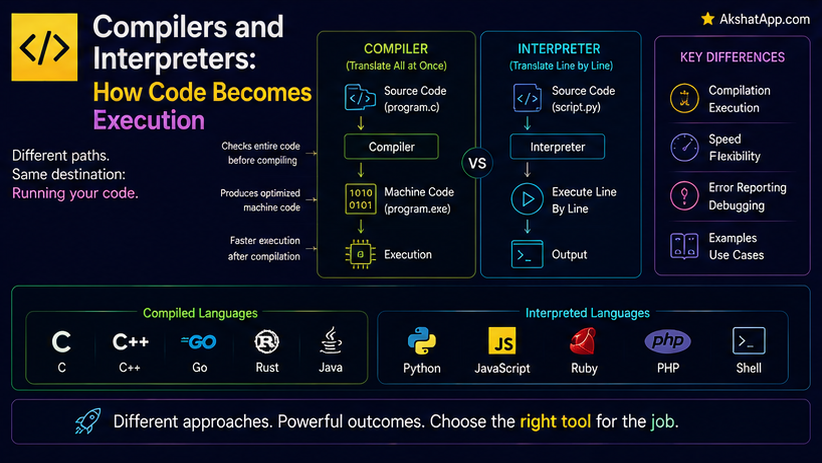
Python is interpreted, not compiled. When you run a Python file, there is no separate “build” step that turns your code into a standalone executable ahead of time (with some exceptions we will not worry about yet). The Python interpreter reads your code and executes it directly, line by line, at the moment you run it. This is why Python feels immediate — write a line, run it, see the result — and also why Python programs are generally slower than compiled languages like C++ or Rust for raw computation.
Python is dynamically typed. A variable does not have a fixed type baked in at creation. The same name can hold an integer, then later hold a string, with nothing stopping you. This makes Python fast to write and flexible to change, and it is also the single largest source of bugs for people coming from statically typed languages. Post #2 in this series covers this in depth.
Python ships “batteries included.” The standard library that comes with every Python installation handles file I/O, networking, math, dates, JSON, regular expressions, and dozens of other common tasks without installing anything external. This is deliberate design philosophy, not an accident — Python’s creators wanted common tasks to require zero setup friction.
Hold these three ideas loosely for now. They will become concrete as you write code in the sections below.
Installing Python: The Current Standard
As of mid-2026, Python 3.14 is the current stable release, with Python 3.13 still in wide production use and fully supported. Every example in this post — and this series — works identically on both. If you see a tutorial anywhere still referencing Python 2, close the tab; Python 2 reached end of life in January 2020 and has no place in new code.
macOS
# Using Homebrew (recommended)
brew install python@3.13

# Verify installation
python3 --version
# Python 3.13.x
macOS ships with an old system Python that you should never use for your own projects — it exists for the operating system’s internal use. Always install your own version via Homebrew or the method below.
Windows
Download the installer directly from python.org rather than the Microsoft Store version, which has historically lagged behind and has permission quirks.
- Go to python.org/downloads
- Download the Python 3.13 Windows installer
- Critical step: Check “Add python.exe to PATH” during installation — this single checkbox prevents the most common Windows setup frustration
- Verify:
python --version
# Python 3.13.x
Linux
Most distributions ship Python by default, but often an older version than you want.
# Ubuntu/Debian
sudo apt update
sudo apt install python3.13 python3.13-venv

# Verify
python3.13 --version
The Modern Toolchain: uv
Historically, setting up a Python project meant juggling several separate tools: pip for installing packages, venv for isolating project environments, pyenv for managing multiple Python versions, and pip-tools for locking dependency versions. Each had its own commands, its own quirks, and its own way of breaking.
uv, built by Astral, has become the standard way to manage Python projects in 2026. It replaces all of the above with one fast, coherent tool written in Rust.
Installing uv
# macOS/Linux
curl -LsSf https://astral.sh/uv/install.sh | sh

# Windows (PowerShell)
powershell -ExecutionPolicy ByPass -c "irm https://astral.sh/uv/install.ps1 | iex"

# Verify
uv --version
Creating Your First Project With uv
# Create a new project
uv init unit-converter
cd unit-converter

# This creates:
# unit-converter/
#   ├── .python-version
#   ├── README.md
#   ├── main.py
#   └── pyproject.toml

# uv automatically manages an isolated environment — no manual venv activation needed
uv run main.py
uv run handles creating the virtual environment, installing dependencies, and running your code — one command instead of four separate ones. This is the workflow used throughout this series.
Installing Packages With uv
# Add a dependency to your project
uv add requests

# Remove one
uv remove requests

# Install all dependencies from an existing project
uv sync
Why this matters: The traditional pip + venv workflow still works and you will encounter it in existing codebases — Post #8 covers it explicitly for that reason. But for anything you build from scratch in 2026, uv is the default choice: it is dramatically faster, and it eliminates an entire category of “which Python am I even using right now” confusion.
Your Development Environment
You can write Python in any text editor, but a proper setup pays for itself within the first hour.
Recommended: VS Code
- Install VS Code from code.visualstudio.com
- Install the official Python extension (by Microsoft) from the Extensions panel
- Install the Pylance extension for fast type checking and autocomplete
- Open your project folder — VS Code auto-detects your uv-managed environment
Alternative: PyCharm JetBrains’ PyCharm is a heavier, Python-specific IDE with more built-in tooling out of the box. Worth considering if you are coming from another JetBrains product, but VS Code’s flexibility across languages makes it the more common default in 2026.
Running Python: Three Ways
1. The REPL (Read-Eval-Print Loop)
Type python3 (or python on Windows) with no arguments to enter an interactive session:
$ python3
Python 3.13.0
>>> 2 + 2
4
>>> name = "Alex"
>>> print(f"Hello, {name}")
Hello, Alex
>>> exit()
The REPL is for quick experiments — testing a single expression, checking how a function behaves — not for building anything real. Every line executes immediately and nothing is saved when you exit.
2. Running a Script File
# Create a file called hello.py
echo 'print("Hello from a file")' > hello.py

# Run it
python3 hello.py
# Hello from a file
This is how you run actual programs — write code in a .py file, execute the whole file at once.
3. Using uv run (Recommended for Projects)
uv run main.pyIdentical to running a script directly, except uv ensures the correct Python version and all dependencies are available first, every time, without you having to remember to activate anything.
Your First Real Program: A Unit Converter
Skip the print statement. Here is a program that does something you would actually want — converts between common units — using only the fundamentals available to you right now.
# main.py

def main():
    print("=== Unit Converter ===")
    print("1. Miles to Kilometers")
    print("2. Kilometers to Miles")
    print("3. Fahrenheit to Celsius")
    print("4. Celsius to Fahrenheit")

    choice = input("Choose a conversion (1-4): ")
    value = float(input("Enter the value to convert: "))

    if choice == "1":
        result = value * 1.60934
        print(f"{value} miles = {result:.2f} kilometers")
    elif choice == "2":
        result = value / 1.60934
        print(f"{value} kilometers = {result:.2f} miles")
    elif choice == "3":
        result = (value - 32) * 5 / 9
        print(f"{value}°F = {result:.2f}°C")
    elif choice == "4":
        result = (value * 9 / 5) + 32
        print(f"{value}°C = {result:.2f}°F")
    else:
        print("Invalid choice. Please run again and choose 1-4.")


if __name__ == "__main__":
    main()
Run it:
uv run main.py=== Unit Converter ===
1. Miles to Kilometers
2. Kilometers to Miles
3. Fahrenheit to Celsius
4. Celsius to Fahrenheit
Choose a conversion (1-4): 3
Enter the value to convert: 98.6
98.6°F = 37.00°CWhat Just Happened, Line by Line
def main(): — defines a function named main, a reusable block of code. Functions get a full treatment in Post #4; for now, understand it as “a named container for a sequence of steps.”
input("...") — pauses execution, displays the prompt, and returns whatever the user types as a string, always. This is why the value gets wrapped in float(...) — without that conversion, value would be the text "98.6", not the number 98.6, and the arithmetic below would fail.
float(input(...)) — this is two operations happening in one line, read right to left: first input() gets the text, then float() converts it to a decimal number. This pattern — wrapping one function’s result directly in another — is extremely common in Python and worth getting comfortable with immediately.
if choice == "1": — compares the user’s input against the string "1". Note that choice was never converted to a number, because we only ever compare it as text — there is no arithmetic to do with the menu choice itself.
f"{value} miles = {result:.2f} kilometers" — an f-string (formatted string literal). Anything inside {} gets evaluated and inserted into the string. The :.2f after result is a format specifier meaning “round to 2 decimal places.” F-strings are the modern, correct way to build strings with embedded values in Python — never use the older % formatting or .format() method in new code.
if __name__ == "__main__": — this line looks strange the first time you see it and every Python developer eventually asks what it means. Every Python file has a built-in variable called __name__. When you run a file directly (python3 main.py), Python sets __name__ to "__main__". When that same file is instead imported by another file, __name__ is set to the file’s actual name instead. This line means: “only run main() if this file was executed directly, not if it was imported elsewhere.” You will use this exact pattern in every runnable script for the rest of your Python career — Post #8 explains why it matters once you start writing multi-file programs.
The Zen of Python
Python has an official set of guiding principles built directly into the language. Try it:
>>> import thisThis prints “The Zen of Python” — nineteen aphorisms including “Simple is better than complex” and “There should be one — and preferably only one — obvious way to do it.” It is half genuine design philosophy, half a long-running inside joke among the language’s core developers. Either way, it explains a lot about why Python code across different developers tends to look more similar than equivalent code in most other languages: the community broadly agrees on what “good” looks like.
Common Mistakes and Gotchas
⚠️ Mistake 1: Indentation errors
Python uses indentation — not braces or keywords — to define code blocks. Mixing tabs and spaces, or indenting inconsistently, causes an IndentationError.
# Wrong — inconsistent indentation
if True:
    print("this line")
   print("this line is indented differently")  # IndentationError

# Right — consistent 4-space indentation
if True:
    print("this line")
    print("this line matches")
Configure your editor to insert spaces (not tab characters) when you press Tab, and set it to 4 spaces per indent level — the universally agreed Python standard.
⚠️ Mistake 2: Forgetting the colon
Every block-opening statement — if, for, while, def, class — ends with a colon.
if choice == "1"    # SyntaxError — missing colon
    print("hi")

if choice == "1":   # Correct
    print("hi")
⚠️ Mistake 3: Assuming input() returns a number
Covered above, but worth repeating because it is the single most common early bug: input() always returns a string, even if the user types digits. Forgetting to convert it produces confusing errors or silently wrong behavior (string “2” + string “2” concatenates to “22”, it does not add to 4).
⚠️ Mistake 4: Using the system Python instead of your own
On macOS and Linux especially, running python3 without a project-specific environment active can silently use the operating system’s Python, where you may not have permission to install packages — or worse, where installing packages could interfere with system tools. Using uv run from within a project directory avoids this entirely.
Performance Note (Preview)
Python is not the fastest language for raw computation — CPython (the standard implementation you just installed) trades some execution speed for development speed and flexibility. For the vast majority of real-world programs — web backends, scripts, data processing, automation — this tradeoff is the right one, because the bottleneck is almost always I/O (network calls, disk reads, database queries) rather than raw CPU work. Post #17 covers profiling and exactly when performance actually becomes a concern worth addressing.
Quick Reference
# Installation check
python3 --version

# uv project commands
uv init project-name        # Create new project
uv add package-name          # Add a dependency
uv remove package-name        # Remove a dependency
uv run script.py              # Run a script in the project environment
uv sync                       # Install dependencies from pyproject.toml

# Running Python directly
python3                       # Start the REPL
python3 script.py             # Run a file
python3 -c "print('hi')"      # Run a one-line command

# Inside the REPL
exit()                        # Quit the REPL
import this                   # The Zen of Python
Exercises
Exercise 1 — Direct application
Add a fifth conversion option to the unit converter: pounds to kilograms (1 pound = 0.453592 kg). You will need a new elif branch following the exact pattern already shown.
Exercise 2 — Slight variation Modify the program so that after showing a result, it asks “Convert another? (y/n)” and repeats the whole process if the answer is “y”. Hint: you will need a loop — if you have not learned loops yet (that’s Post #3), just make the program ask once, run it multiple times, and think about what would need to repeat.
Exercise 3 — Real-world combination
Write a completely separate program that asks for a person’s name and current age, and prints what year they will turn 100. Hint: you will need input(), an int conversion, and basic arithmetic — everything covered in this post.
Exercise 4 — Open-ended challenge Look at the unit converter program again. What happens if someone enters “abc” instead of a number when prompted for the value? Run it and see the actual error message. You do not need to fix this yet — Post #7 on error handling will show you exactly how — but understanding what breaks and why is valuable now.
FAQ
Q: Should I use Python 2 or Python 3? A: Python 3, without any exception. Python 2 reached end of life in January 2020, receives no security updates, and no current tutorial, library, or job posting should be targeting it in 2026.
Q: Do I need to learn pip if I’m using uv?
A: You should understand what pip does conceptually, because you will encounter requirements.txt files and pip-based instructions in existing projects and documentation for years to come. Post #8 covers pip directly for this reason. For your own new projects, uv is the better day-to-day tool.
Q: Why does my terminal say “command not found: python” but “python3” works?
A: On macOS and most Linux distributions, python is not aliased to python3 by default, to avoid ambiguity with old Python 2 installations. Use python3 explicitly, or add an alias in your shell config if you prefer typing less.
Q: Is VS Code really better than PyCharm for Python? A: Neither is objectively better — VS Code is lighter, faster to open, and works well across many languages if Python is not the only thing you write. PyCharm has more Python-specific tooling built in without extensions. Try both for a week each; most developers have a strong preference after that.
Q: My code looks identical to the example but gives a different error. What do I do? A: Read the error message from the bottom up — the last line usually tells you the actual problem, while the lines above show you where in your code it occurred. Compare your indentation character-by-character with the example; invisible differences there cause the majority of early confusion.
Summary and Next Steps
You now have: Python 3.13+ installed correctly, uv managing your project and dependencies, a working development environment, and a real program that takes input, does arithmetic, and formats output — using variables, conditionals, string conversion, and f-strings.
Your next step: Complete at least Exercises 1 and 3 above before moving to the next post. The unit converter will return in Post #4, where you will refactor its repeated if/elif logic into clean, reusable functions — and again in Post #5, where a dictionary will replace the entire conditional chain in about four lines.
Code tested with Python 3.13. Last updated: June 2026.
Share This Post

Join our newsletter!
Get the latest developer guides, tutorials, and tips delivered straight to your inbox.